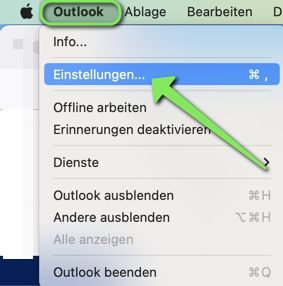
Mail einrichten - Outlook (macOS)/en
| Zeile 33: | Zeile 33: | ||
* Then click on '''"New account..."'''. | * Then click on '''"New account..."'''. | ||
<br clear=all> | <br clear=all> | ||
| + | |||
| + | ===Set up an account=== | ||
| + | <br> | ||
| + | {{Email aliases}} | ||
| + | <bootstrap_accordion> | ||
| + | <bootstrap_panel heading="Outlook Legacy for macOS"> | ||
| + | These instructions refer to the classic design of Outlook on macOS. | ||
| + | |||
| + | [[File:Set up mail outlook macos 04.png|left|mini|without|350px|Email address]] | ||
| + | <br> | ||
| + | * Enter your email address. | ||
| + | * Then click '''"Next"'''. | ||
| + | <br clear=all> | ||
| + | |||
| + | [[File:Set up mail outlook macos 05.png|left|mini|without|350px|Email protocol]] | ||
| + | <br> | ||
| + | * Click '''"IMAP/POP"'''. | ||
| + | <br clear=all> | ||
| + | |||
| + | Select the following settings: | ||
| + | [[File:Setting up mail outlook macos 06.png|links|mini|without|350px|E-mail settings]] | ||
| + | <br> | ||
| + | * '''Type:''' IMAP | ||
| + | * '''E-mail address:''' Your personal e-mail address from which you want to send. | ||
| + | * '''User name:''' User name for your university account. | ||
| + | * '''Password:''' Password for your university account. | ||
| + | * '''Incoming mail server:''' <code>mail.uni-paderborn.de</code> | ||
| + | * '''Use SSL for connection''': Activate checkbox | ||
| + | * '''Outgoing mail server:''' <code>mail.uni-paderborn.de</code> | ||
| + | * '''Use SSL for connection''': Activate checkbox | ||
| + | <br> | ||
| + | |||
| + | * Finally, click on '''"Add account"'''. | ||
| + | <br clear=all> | ||
| + | |||
| + | [[File:Setting up mail outlook macos 07.png|left|mini|without|350px|Mailbox successfully added]] | ||
| + | <br> | ||
| + | * Your email mailbox has been set up. | ||
| + | * Click '''Done"'''. | ||
| + | <br clear=all> | ||
| + | </bootstrap_panel> | ||
Version vom 30. Januar 2025, 22:38 Uhr
Die deutsche Version finden Sie auf der Seite Mail einrichten - Outlook (macOS)
 | Please note that Microsoft Sync is active in the new versions of Outlook. This allows Microsoft direct access to your mailbox and your login data. This function therefore violates our terms of use. Information on how to deactivate Microsoft Sync can be found in the course of the instructions. |
This instruction explains how to set up the IMAP mailbox of the University of Paderborn in Microsoft's email program Outlook on a device with the Apple macOS operating system.
What do I need to do?[Bearbeiten | Quelltext bearbeiten]
- Install Outlook
- Set up an email mailbox in Outlook
Step-by-step instructions[Bearbeiten | Quelltext bearbeiten]
- Open Outlook.
Add account[Bearbeiten | Quelltext bearbeiten]
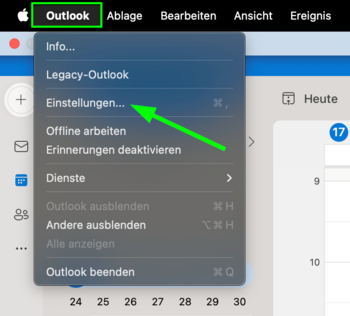
- Click on "Microsoft Outlook" in the menu bar.
- Then click on "Settings...".
- Click on "Accounts".
- Click on the
+at the bottom. - Then click on "New account...".
Set up an account[Bearbeiten | Quelltext bearbeiten]
Vorlage:Email aliases
<bootstrap_accordion>
Outlook Legacy for macOS
These instructions refer to the classic design of Outlook on macOS.
Datei:Set up mail outlook macos 04.png
Email address
- Enter your email address.
- Then click "Next".
Datei:Set up mail outlook macos 05.png
Email protocol
- Click "IMAP/POP".
Select the following settings:
Datei:Setting up mail outlook macos 06.png
E-mail settings
- Type: IMAP
- E-mail address: Your personal e-mail address from which you want to send.
- User name: User name for your university account.
- Password: Password for your university account.
- Incoming mail server:
mail.uni-paderborn.de - Use SSL for connection: Activate checkbox
- Outgoing mail server:
mail.uni-paderborn.de - Use SSL for connection: Activate checkbox
- Finally, click on "Add account".
Datei:Setting up mail outlook macos 07.png
Mailbox successfully added
- Your email mailbox has been set up.
- Click Done".