Bitwarden - Passwoerter abspeichern/en /
Version vom 21. März 2026, 14:44 Uhr von Mariels (Diskussion | Beiträge)
Die deutsche Version finden Sie auf der Seite Bitwarden - Passwörter abspeichern
 | This article is only a draft. Information provided here is most possibly incomplete and/or imprecise. Feel free to help us by expanding it. |
Use Bitwarden to securely store your passwords in one central location.
Step-by-Step Instructions[Bearbeiten | Quelltext bearbeiten]
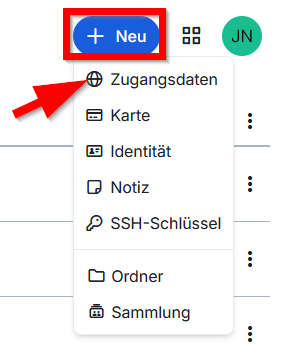
- Click on "+ New".
- Then click on "Login Details" to add a new password.
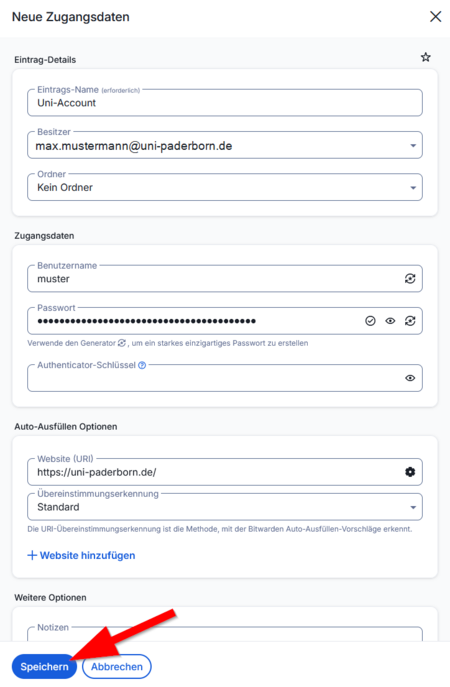
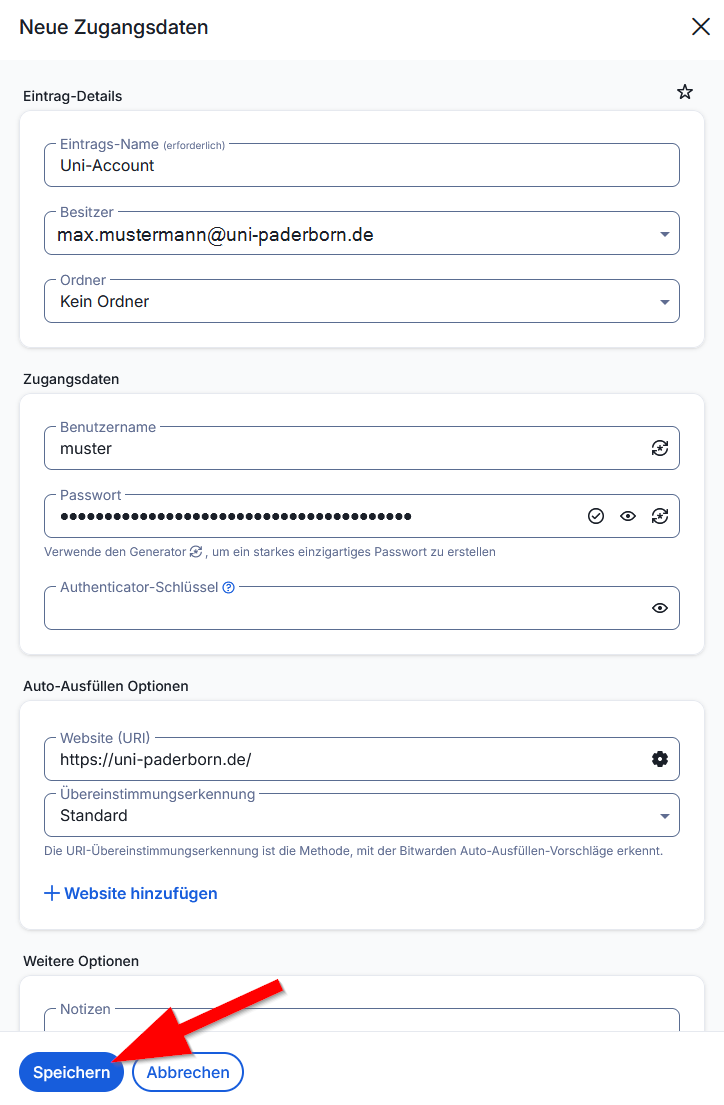
In this example, we'll create an entry for the login details for your university account.
- Enter a descriptive name under Entry Name.
- Choose an owner - In this example, the entry will be stored in your personal vault - Only you will have access to it.
Login Details
- Enter your username
- Enter your password
Autofill Options
- Enter the website where you want to use the password.
- In this example, we use
https://uni-paderborn.de
- We leave the matching setting on the default. This allows you to use this entry on all corresponding subdomains. For example:
- Click Save to apply the changes.
Using Folders[Bearbeiten | Quelltext bearbeiten]
Use folders to organize your passwords.
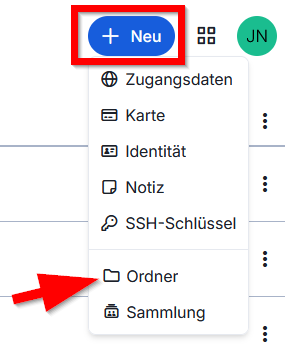
- Click "+ New".
- Click on "Folder".
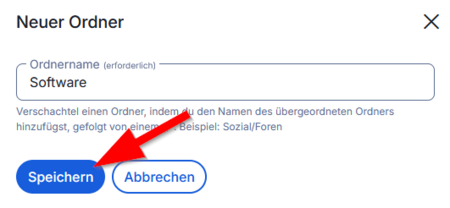
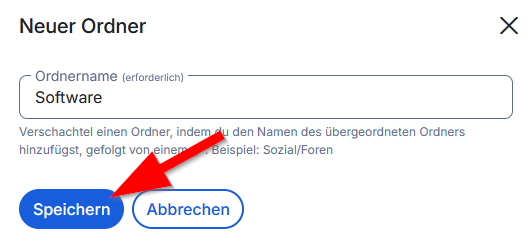
- Enter the name for the folder.
- Then click on "Save".
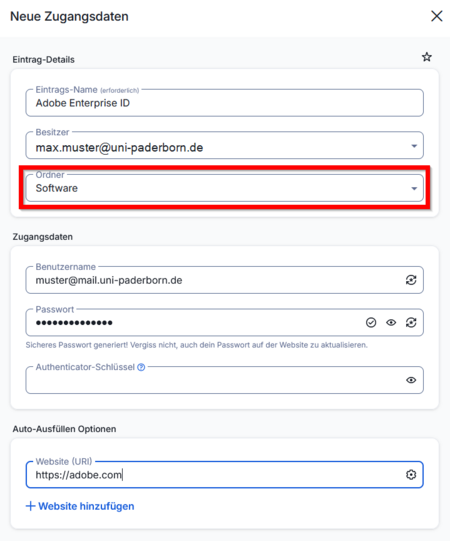
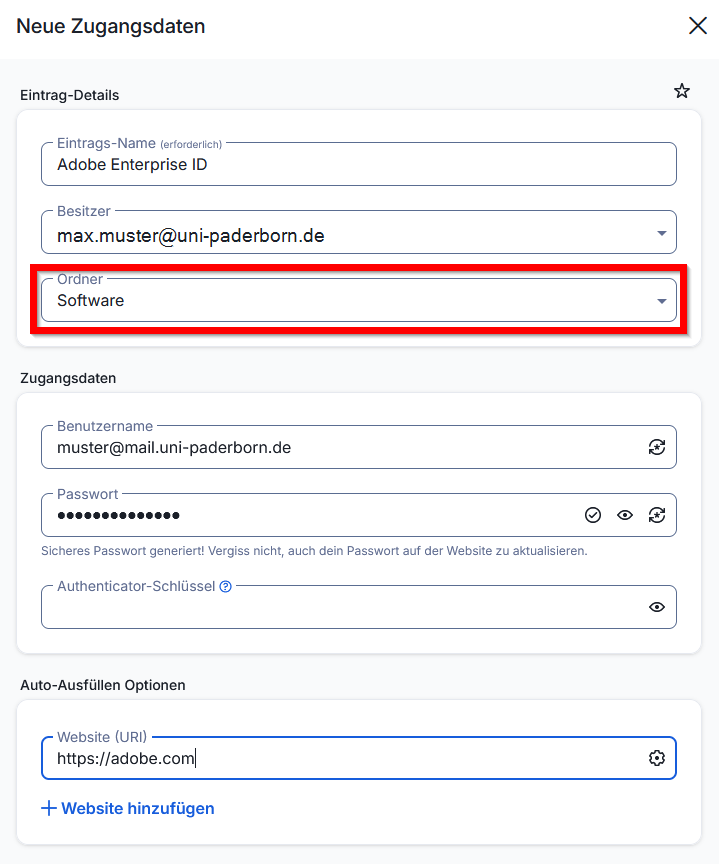
- You can specify a folder when creating and editing entries.
Subfolders[Bearbeiten | Quelltext bearbeiten]
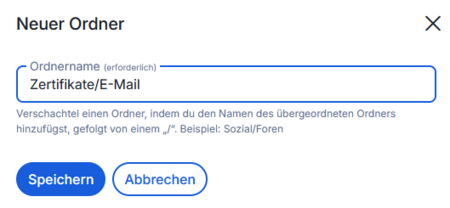
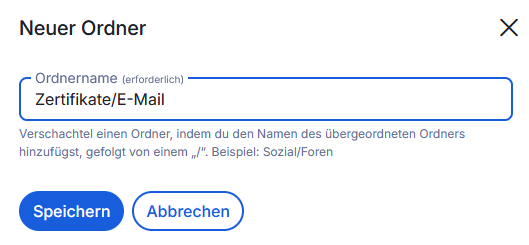
- Use
/to create a subfolder. - In this example, the folder "Certificates" already exists.
- By entering
Certificates/Emailas the folder name, we create a new folder "Email" as a subfolder of "Certificates".
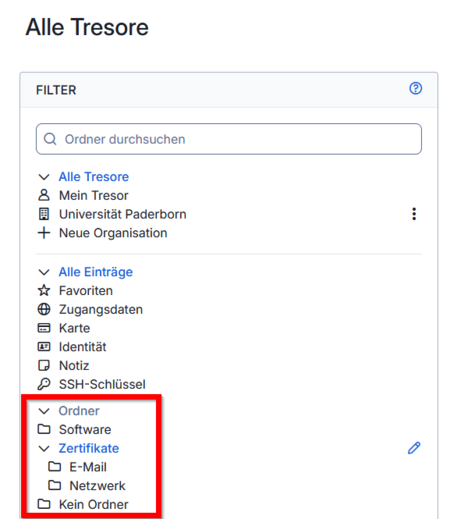
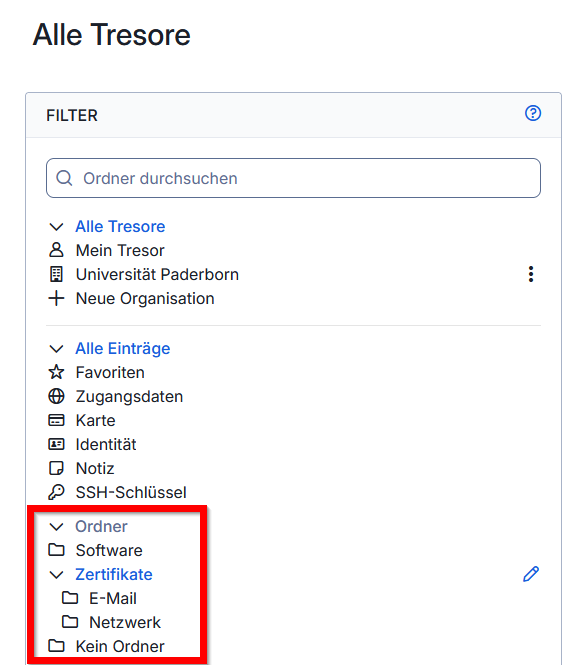
- You can see the folder structure in the vault overview on the left.
- In this example, a simple folder named "Software" was created.
- Additionally, a folder named "Certificates" was created, which has two subfolders.
- You can expand and collapse subfolders using the arrow icon.
See also[Bearbeiten | Quelltext bearbeiten]
Link to other interesting articles on the same topic