Bitwarden - Erweiterungen und Apps installieren/en /
Version vom 20. März 2026, 15:45 Uhr von Mariels (Diskussion | Beiträge)
Die deutsche Version finden Sie auf der Seite Bitwarden - Erweiterungen und Apps installieren
 | This article is only a draft. Information provided here is most possibly incomplete and/or imprecise. Feel free to help us by expanding it. |
Bitwarden offers browser extensions and apps. These allow you to use the autofill password feature and access your entries without an internet connection.
Requirements[Bearbeiten | Quelltext bearbeiten]
- You cannot create a Bitwarden account at the University of Paderborn within an app. You have to register for a Bitwarden account first if you haven't already done so.
- You must be connected to the University of Paderborn network. If you are not on campus, you will need a VPN connection.
Step-by-Step Instructions[Bearbeiten | Quelltext bearbeiten]
Download Bitwarden programs only from the official Bitwarden website!
Here, we demonstrate the installation of the Bitwarden extension in the Chrome browser. Other extensions can be installed similarly.
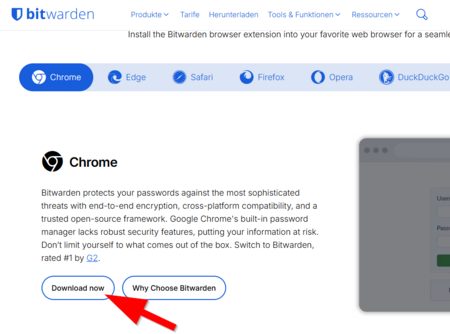
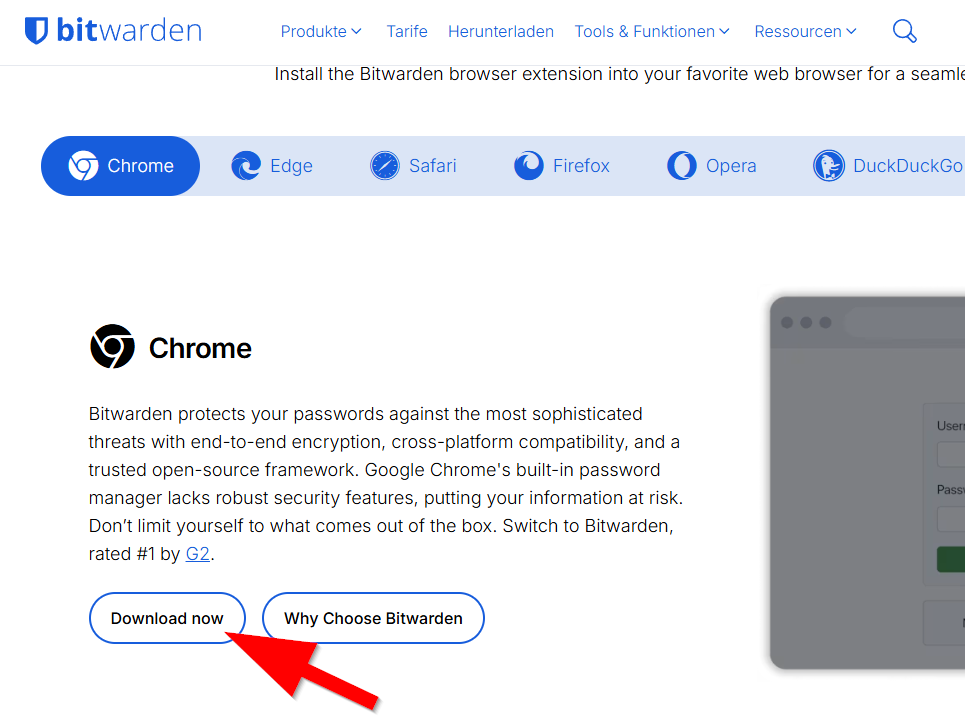
- Select your browser and click "Download now"
- The correct browser is usually already pre-selected.
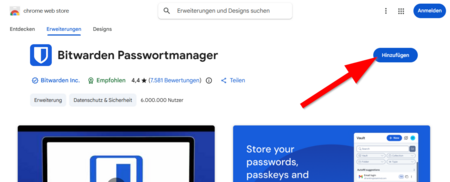
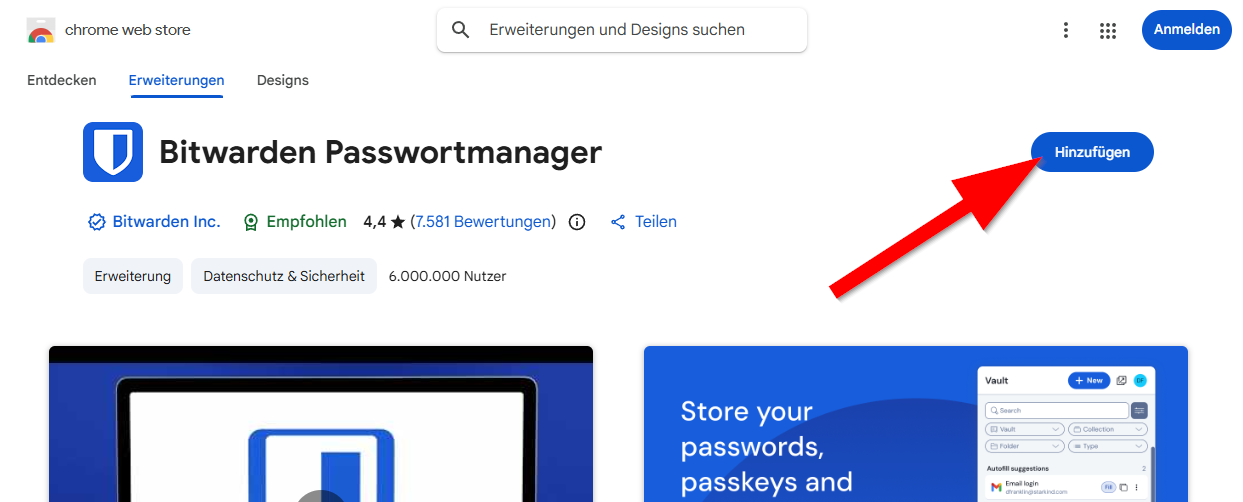
- You will automatically be redirected to the Chrome Web Store.
- Click "Add".
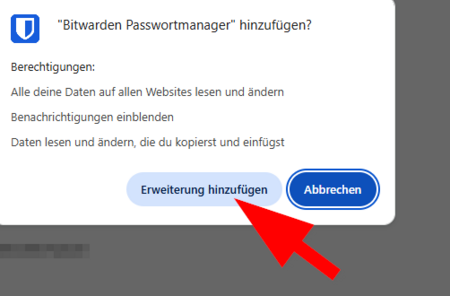
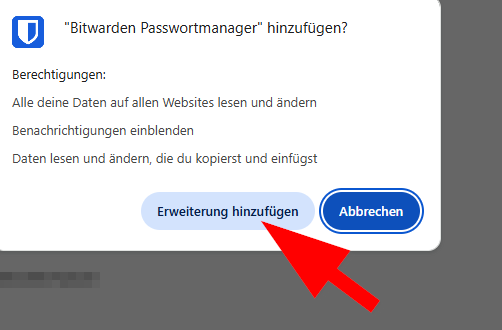
- Click "Add extension".
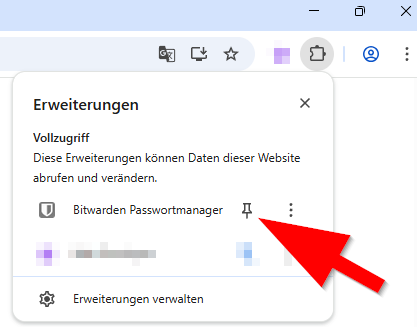
- Click the puzzle piece icon in the Chrome bar.
- Click the pin icon to pin the Bitwarden app.
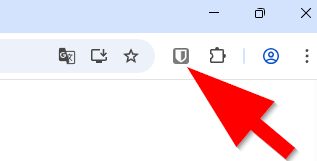
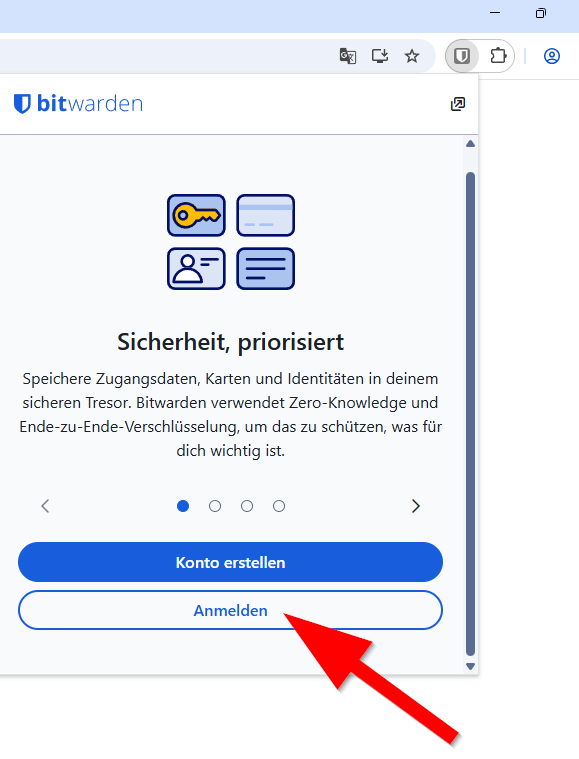
- Click the Bitwarden icon.
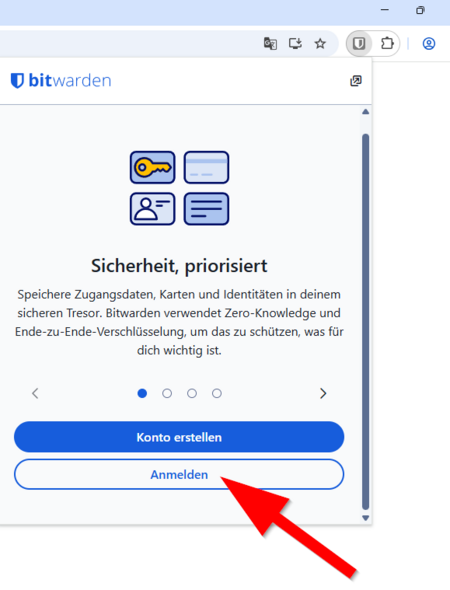
- Click "Sign in."
It is not possible to create an UPB account within the Bitwarden app.
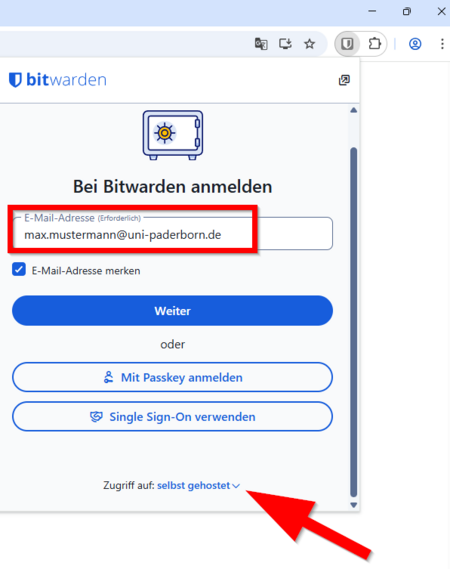
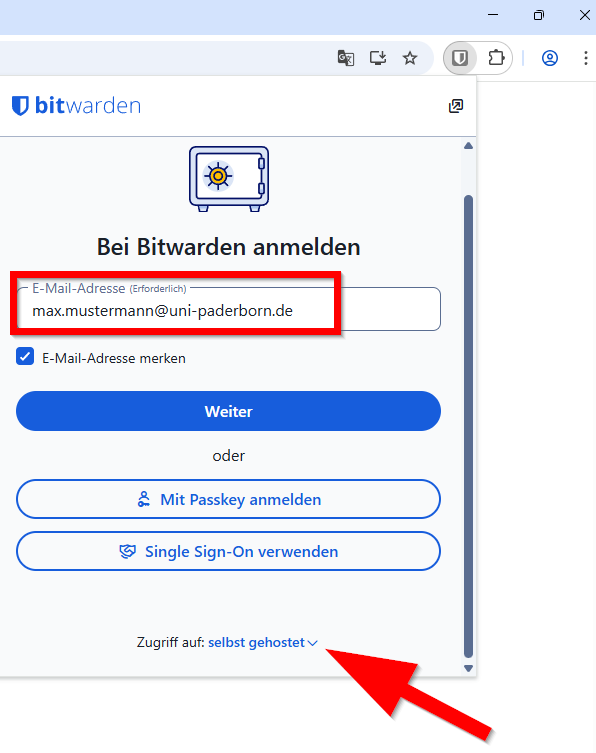
- Enter your preferred email address from the service portal - More information under E-Mail-Adresse - Eigene einsehen
- At the bottom, click on "Access to:" and select "self-hosted".
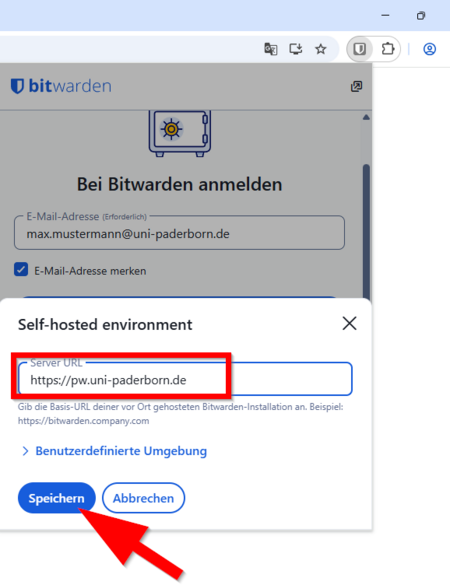
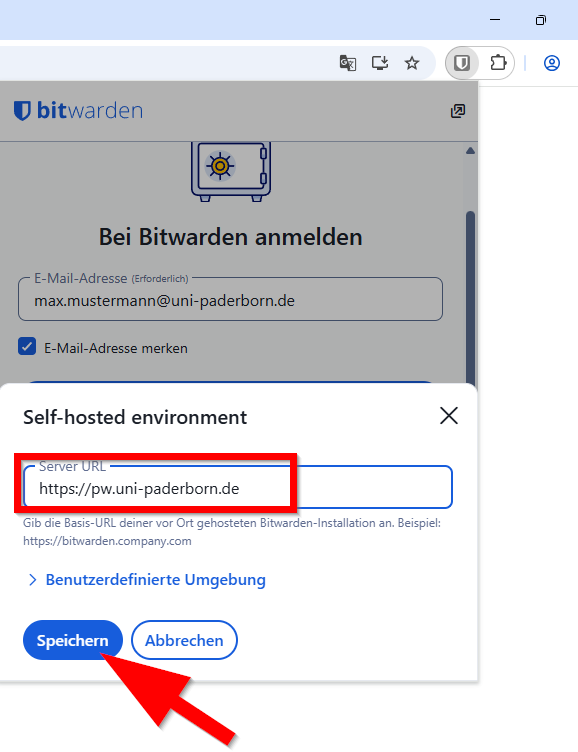
- Enter the following server URL:
https://pw.uni-paderborn.de - Then click on Save.
- Enter your preferred email address from the service portal - More information under E-Mail-Adresse - Eigene einsehen
- At the bottom, click on "Access to:'" and select "self-hosted"".
- Click on Save. ...
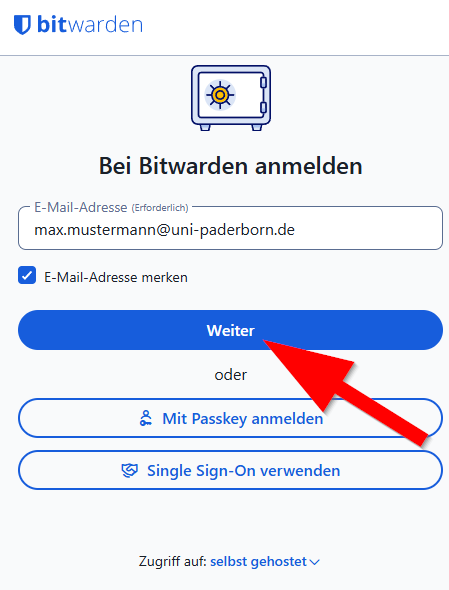
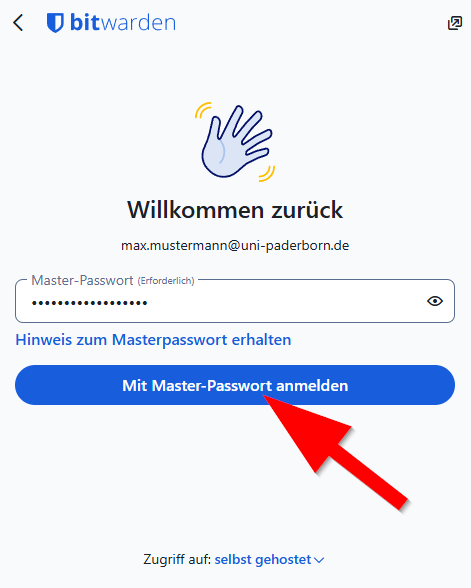
- If you have set an email address and "Access to: self-hosted": Click "Next".
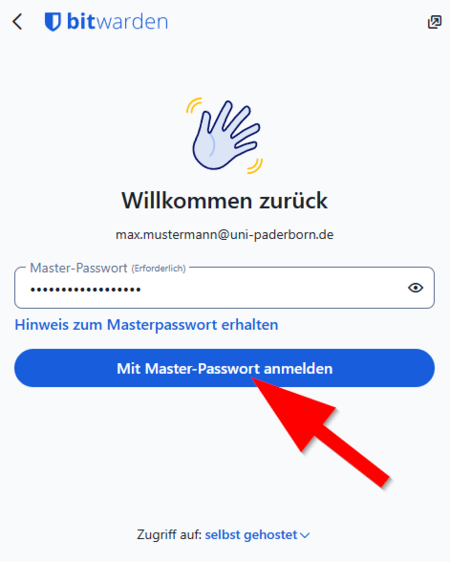
- Enter the "Master Password" for your Bitwarden account.
- Click "Log In".
You can now access your Bitwarden account in your browser. Further settings may be required for autofill to work. Bitwarden can assist you with this.
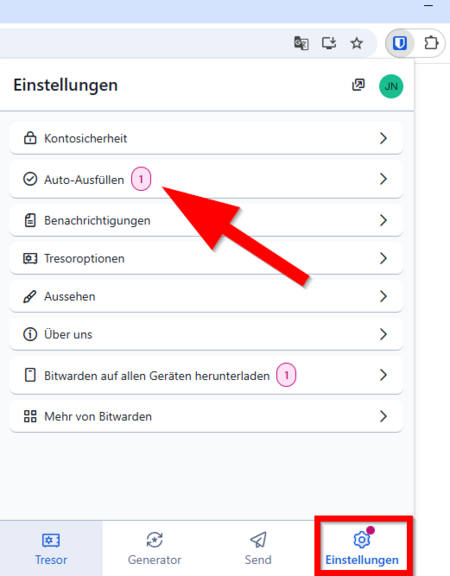
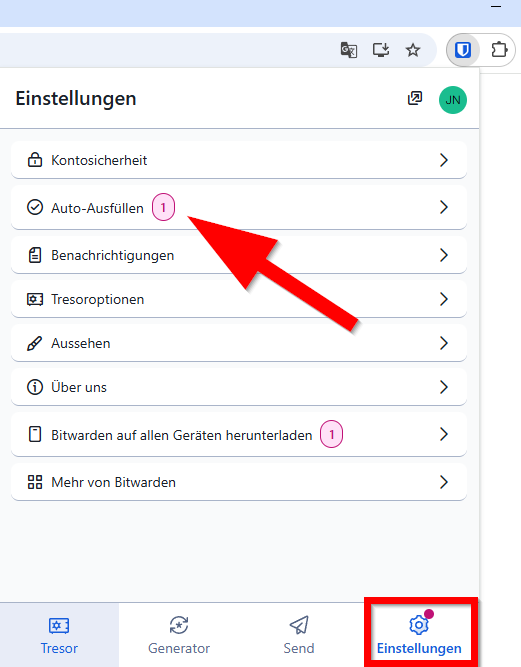
- Click "Settings".
- Click on "AutoFill"'.
- Bitwarden will guide you through the necessary steps to activate autofill.
Example[Bearbeiten | Quelltext bearbeiten]
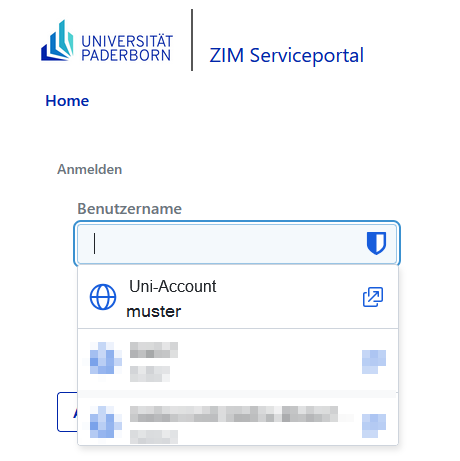
Autofill with Bitwarden in the Service Portal.
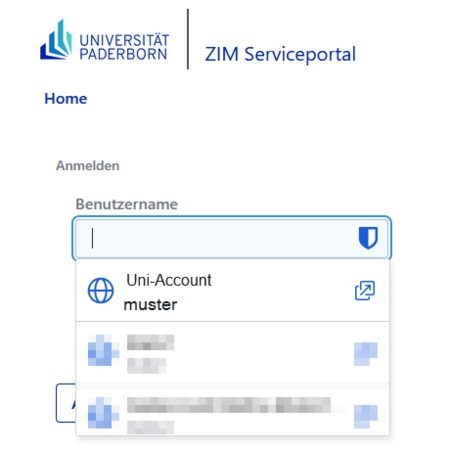
- In the Service Portal, click on the username field.
- Select the login credentials you want to use.
- Bitwarden will now automatically fill in the username and password fields.
See also[Bearbeiten | Quelltext bearbeiten]
Link to other interesting articles on the same topic