⚠
Setup Tunnelblick with a new certificate and a new config file, if you get the following error message:
Authentication failed - The passphrase was not accepted
Do not downgrade the OpenSSL-Verion. This is a security threat.
More on this topic: #Replacing the configuration file
If replacing the configuration file is too complicated for you, you can alternatively issue a new network certificate and start the entire VPN setup process again on macOS.
You need VPN (Virtual Private Network) if you want to use services from outside Paderborn University that are only accessible within the university network. VPN ensures secure access to the university network from external networks (dial-in via other providers, external company or university networks).
Simultaneous connections[Bearbeiten | Quelltext bearbeiten]
<bootstrap_alert color=info>
🛈
Do you want to connect your laptop and your mobile phone to the VPN in addition to your PC? You can set up VPN connections on multiple devices. However, each person can only establish one connection per VPN at the same time.
What does that mean?
Uni-VPN
- If you use the Uni-VPN, you can only establish one connection at a time.
- You cannot establish a connection to the Uni-VPN on another device at the same time.
- You must disconnect the existing connection first.
Group VPN
- If you use a group VPN, you cannot establish a second VPN connection to this group VPN on another device at the same time.
- You must disconnect the existing connection first.
- However, you can establish a parallel connection to the Uni VPN or another group VPN on another device.
What needs to be done? - Quick Guide[Bearbeiten | Quelltext bearbeiten]
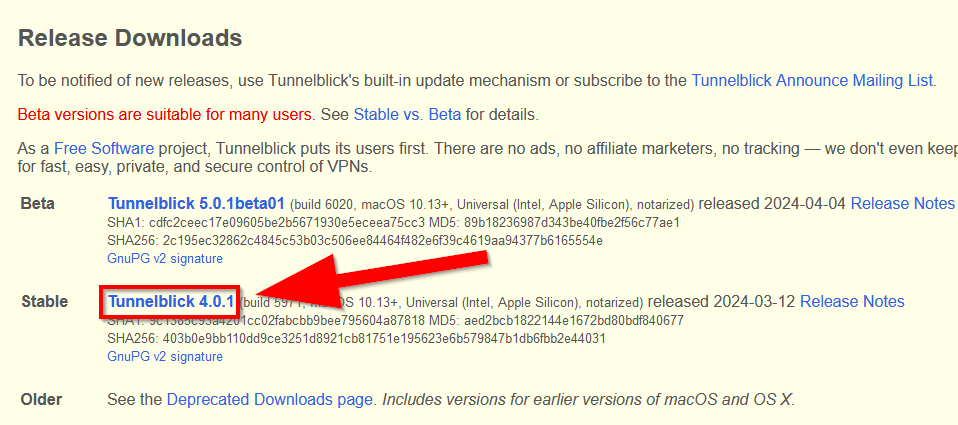
- Install the latest stable version of Tunnelblick. Tunnelblick
- Generate your personal network certificate in the Serviceportal.
- Download the configuration file
- Create a configuration file for Tunnelblick and import it.
Step-by-step instructions: Preparation[Bearbeiten | Quelltext bearbeiten]
Install Tunnelblick[Bearbeiten | Quelltext bearbeiten]
- Download the latest stable version of Tunnelblick.
- https://tunnelblick.net/downloads.html
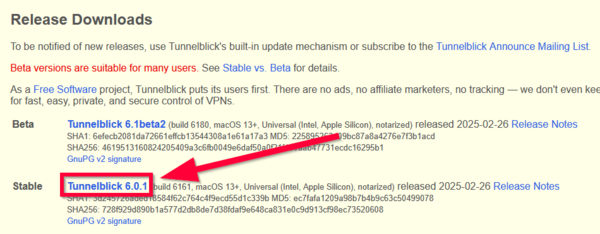
- Install Tunnelblick.
Generate network certificate[Bearbeiten | Quelltext bearbeiten]
You need a network certificate for the VPN connection.
Access the service portal:
- https://serviceportal.uni-paderborn.de
- Log in with your university account.
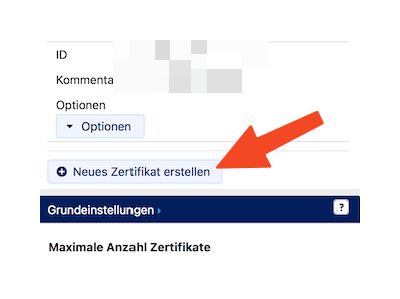
- Then click on Netzwerkeinstellungen under Benutzerverwaltung in the top menu.
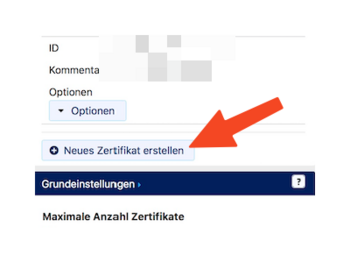
- Click "Neues Zertifikat erstellen".
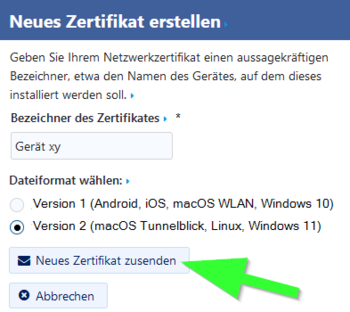
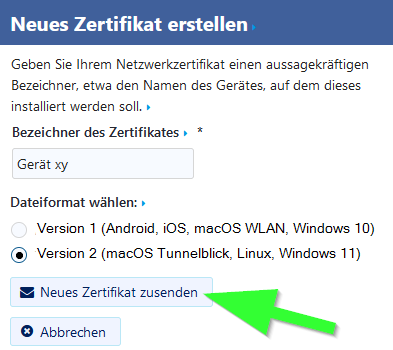
- Give the certificate a unique name (Example: MacBook VPN)
- Select Version 2 as the file format!
- Then click on "Neues Zertifikat zusenden".
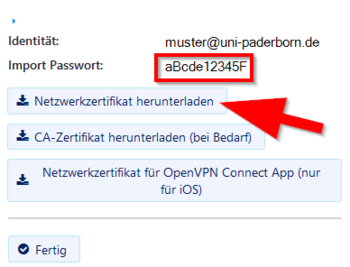
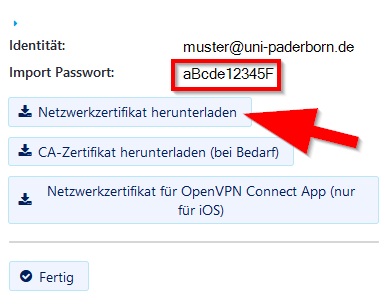
- A new network certificate has been created for you.
- First copy the Import Password to the clipboard.
- Now click on "Download Network Certificate".
You have now downloaded your personal network certificates.
Set up Tunnelblick[Bearbeiten | Quelltext bearbeiten]
Download the configuration file. To do this, select the VPN you want to connect to and click Download.
Note: You can click Download here to download your configuration file. This is not a screenshot ;-)
Direct all internet traffic through the tunnel?
- Accessing online resources may require that you route all network traffic through the tunnel.
- You do not need this option to simply access the network drives.
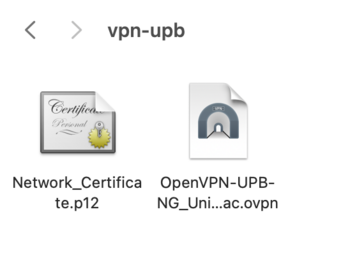
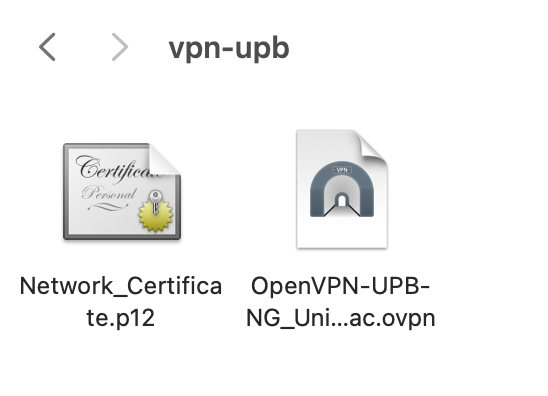
- Create a new folder - For example, name it "vpn-upb".
- This is what your VPN connection will be called later.
- Now put the personal network certificate and configuration file in this folder.
- Rename your personal network certificate to
Network_Certificate.p12 - Example: Change the file name
Network_Certificate_muster_078B30.p12toNetwork_Certificate.p12 - The configuration file should have an icon like the screenshot and end with
.ovpn.
My configuration file looks different! - What now? -Click here-
- When downloading, it can happen that the .ovpn file becomes a .txt file. However, we can change the file extension again relatively easily.
- Click on the configuration file. Now press cmd + i on the keyboard.
- "Name & Suffix" may now read .ovpn.txt.
- Delete the .txt.
- Then press the Enter key.
- Click Add.
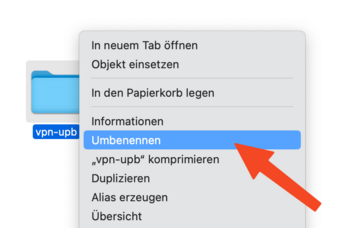
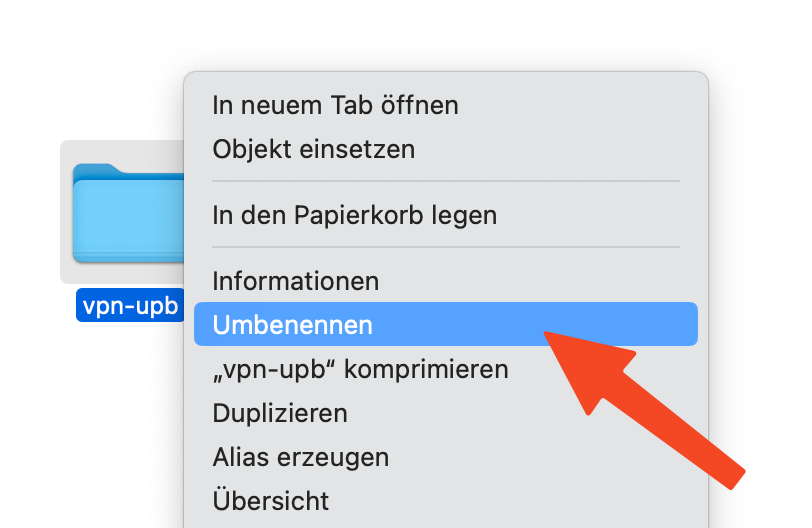
- Now rename the folder and add the file extension
.tblkto it. - You can use the context menu or right-click for this.
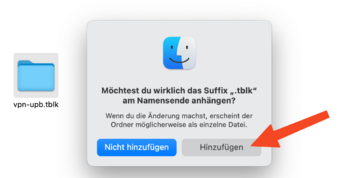
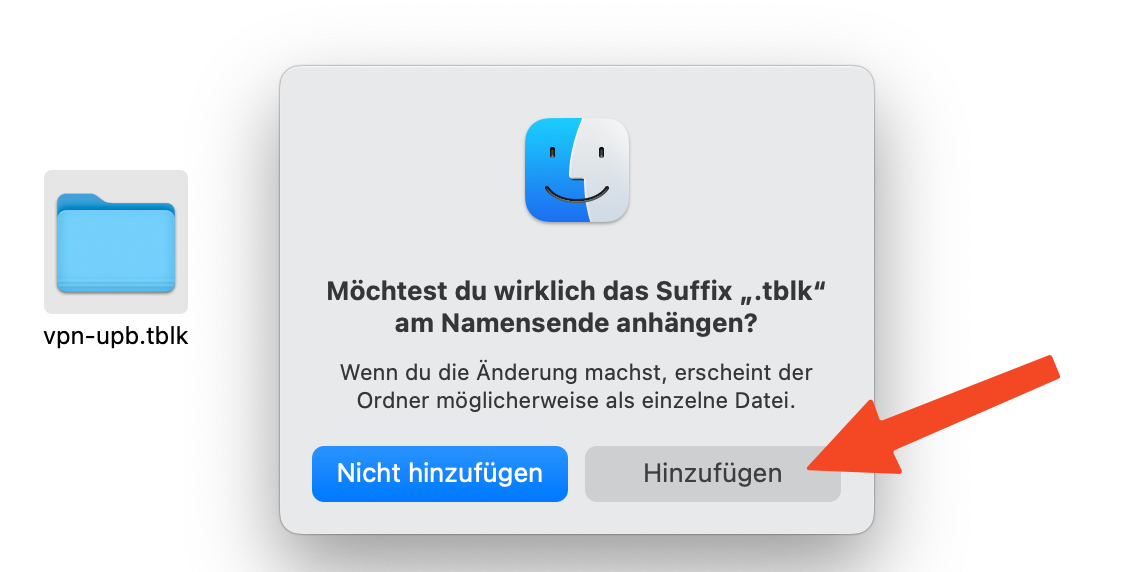
- You must now confirm the change.
- Click Add.
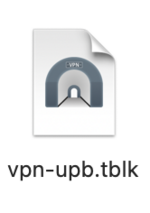
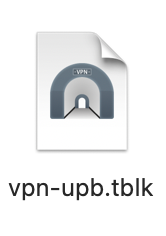
- You have now created a configuration for Tunnelblick - This now needs to be installed.
- Open this file with a double click.
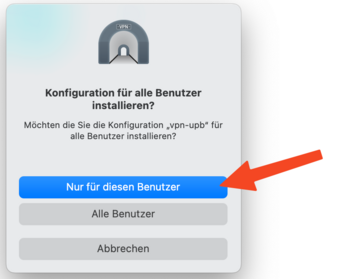
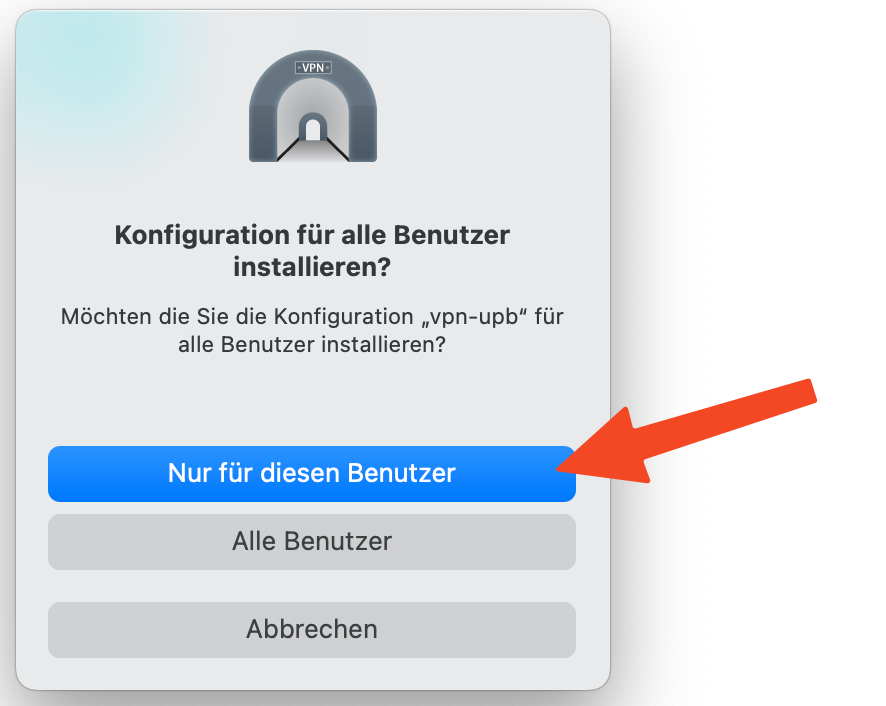
- You will be asked which user you want to install the configuration for.
- Select "Only for this user".
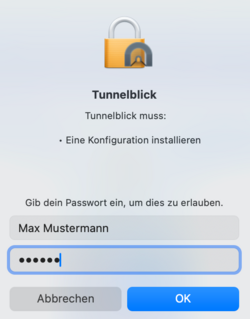
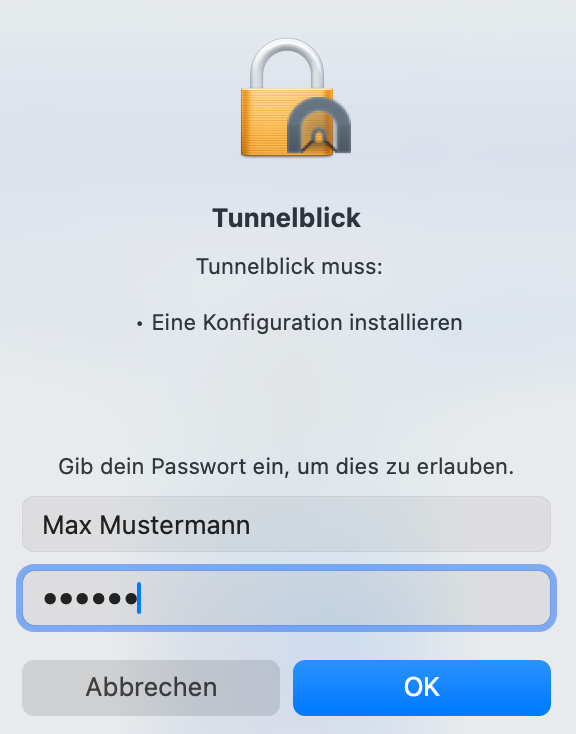
- You will be prompted to enter your Mac password to install the configuration.
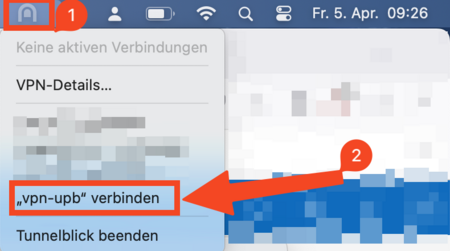
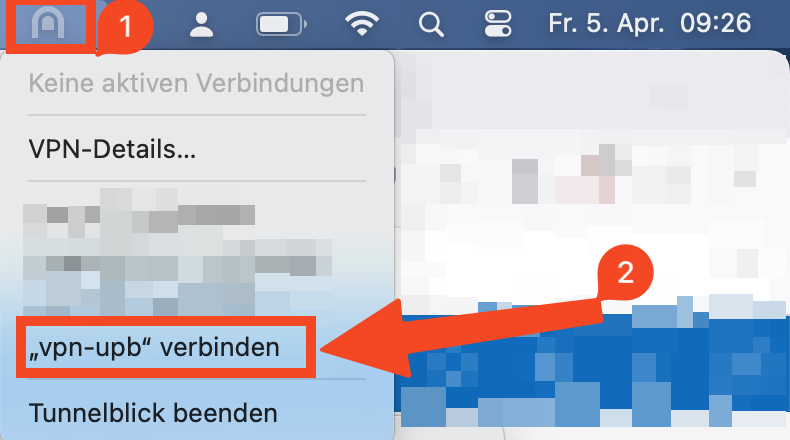
- Now click on the tunnel vision symbol in the menu bar at the top.
- Click connect on the desired VPN connection.
- In our example this is "connect vpn-upb"
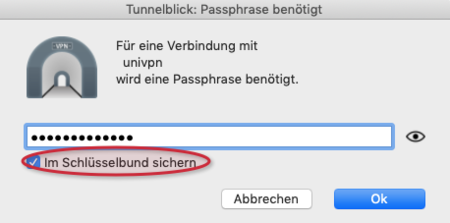
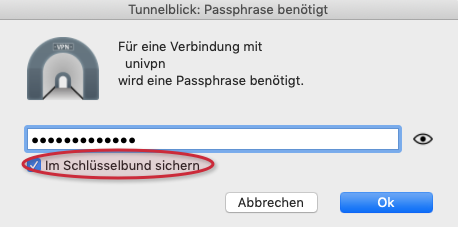
- In the next step you will be asked to enter a password. Enter the import password mentioned above that belongs to the certificate.
- In addition, be sure to select the "Save to Keychain" option so that the password is saved (otherwise you will have to keep re-entering the import password).
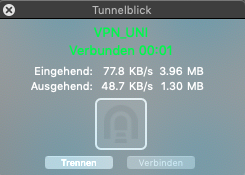
- Wait until the font turns green and you are connected.
- You can quickly connect and disconnect the connection using the Tunnelblick symbol.
Replacing the configuration file[Bearbeiten | Quelltext bearbeiten]
If you have been using VPN access for a while, it may be necessary at some point to update the configuration file to the latest version. Below we explain how this works.
Click here for details
If you still have the .tblk file you used to set up Tunnelblick: Open the .tblk file by right-clicking and selecting "Edit" and replace the configuration file. You can then import the file back into Tunnelblick by double-clicking it. Before importing, delete the old configuration in Tunnelblick or rename the file. See #Set up Tunnelblick for more information.
Alternatively, you can edit the configuration file in Tunnelblick. We explain this below. If this doesn't work, you can also set up Tunnelblick completely from scratch. In this case, start with: #Generate network certificate
Editing the configuration file in Tunnelblick
- Download the new configuration file.
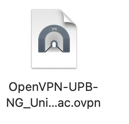
- Select the configuration file.
- Open the context menu with a right-click.
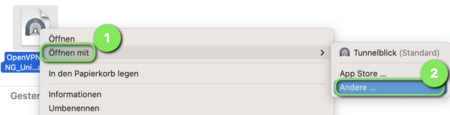
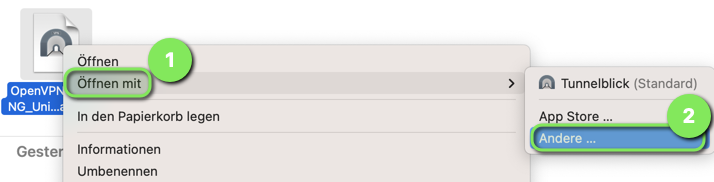
- Select "Open with". (1)
- Then click on "Other...". (2)
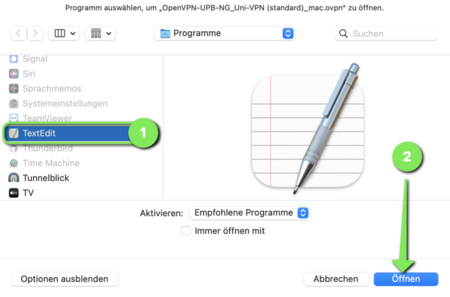
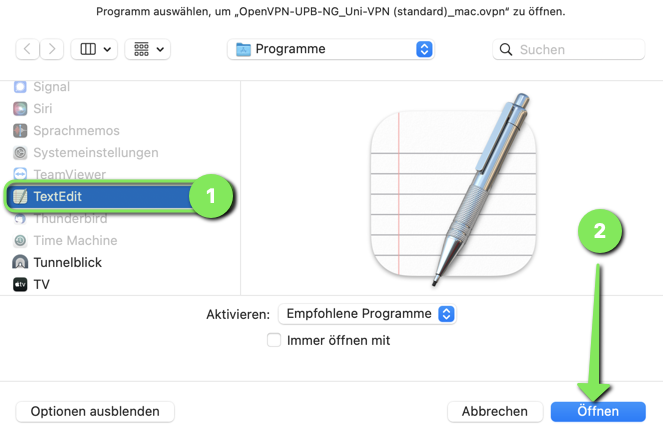
- Select "TextEdit" from the list. (1)
- Then click on "Open". (2)
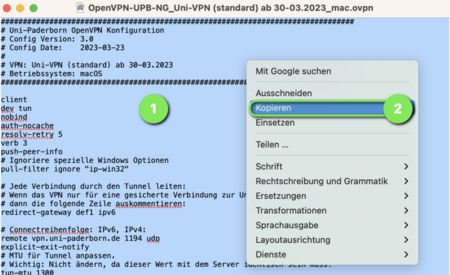
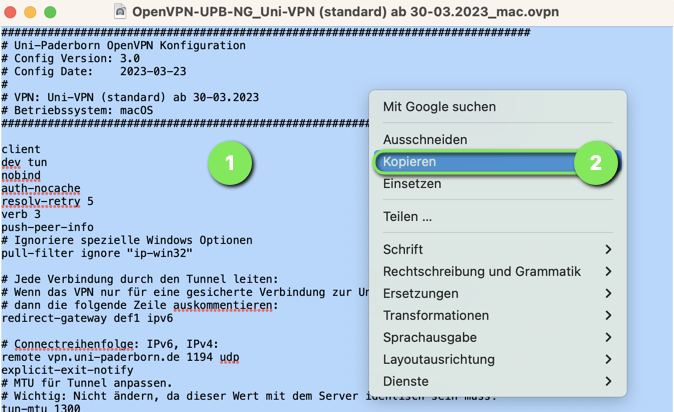
- Copy the entire contents of the configuration file to the clipboard.
- The fastest way to do this is with the following keyboard shortcuts:
cmd+A(Select all)
cmd+C(Copy)
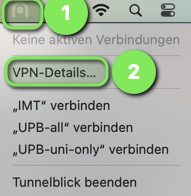
- Click on the Tunnel Vision icon in the menu bar at the top right. (1)
- Then click on "VPN Details". (2)
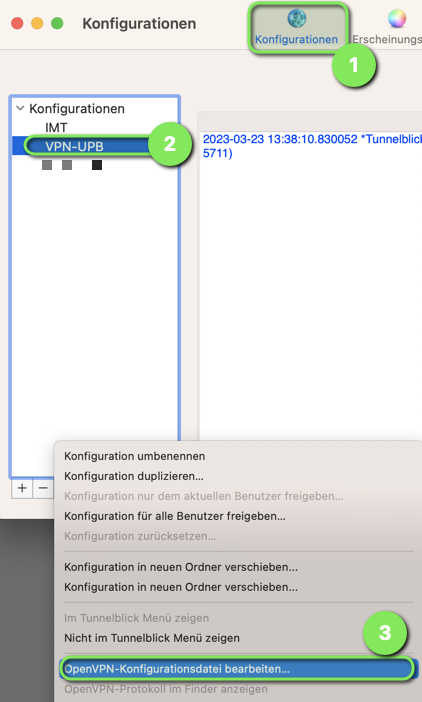
- Select the "Configurations" menu. (1)
- On the left, select the configuration you want to edit. (2)
- Then click on the circle with the three dots at the bottom.
- Scroll down a bit in the menu that opens.
- Click on "Edit OpenVPN Configuration File..." (3)
- Do you want to keep your old configuration file and create a new one instead?
- Click on "Duplicate Configuration" in the old configuration file.
- Then select the copy and proceed with (3).
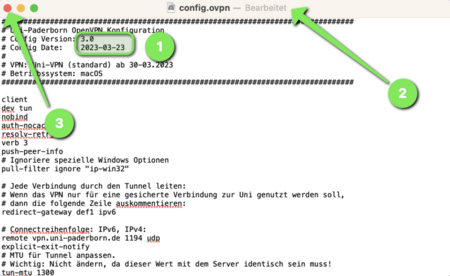
- The configuration file will now open.
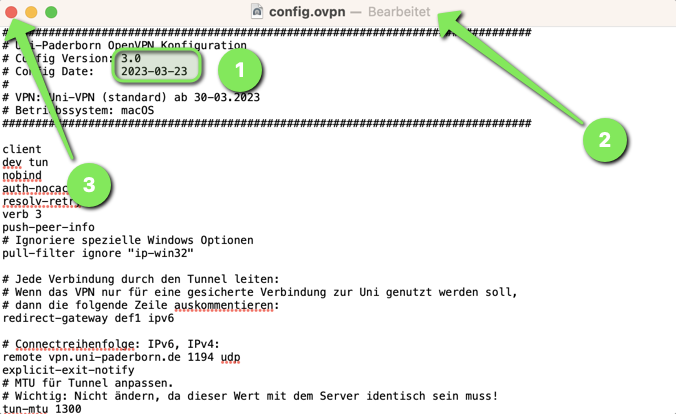
- You can see how up-to-date your configuration file is by looking at the "Date" and "Version". (1)
- Delete the contents of the configuration file and replace them with the contents of the clipboard.
[Datei:Vpn-unter-macos-07.png|links|mini|ohne|450px|Replace content and save]]
- The configuration file will now open.
- You can see how current your configuration file is by looking at the "Date" and "Version".
- Delete the contents of the configuration file and replace them with the contents of the clipboard.
``` * The easiest way to do this is with the following keyboard shortcuts:
- cmd + A (Select all)
- Delete
- cmd + V (Insert)
- You can see that you have made changes by the "Edited" indicator. (2)
- Close the window by clicking the red X. (3)
You have now replaced the contents of the configuration file with the new version.
The first time you connect using the modified configuration file, you will see the following information:
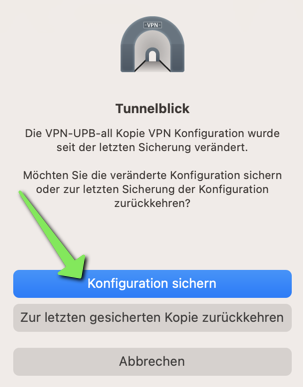
- Click on "Save configuration".
- You can now connect using the new configuration file.
- Made a mistake and want to undo the changes?
- Click on "Revert to the last saved copy."
Common Issues[Bearbeiten | Quelltext bearbeiten]
Passphrase not accepted[Bearbeiten | Quelltext bearbeiten]
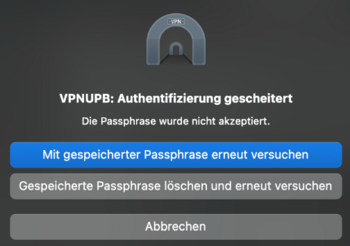
If you receive the following error message when connecting to the VPN:
Authentication failed - The passphrase was not accepted
Check that you have created the correct certificate. When creating the certificate, make sure you select Version 2. Tunnelblick cannot unpack SH1 certificates.
Configuration file not readable[Bearbeiten | Quelltext bearbeiten]
During the download, the .ovpn file may be converted to a .txt file.
Select the configuration file. Press the cmd and i key combination. If the file ends with .txt under Suffix, delete this part. The name should end with .ovpn.
Group VPN ports are blocked - TLS handshake failed after a timeout (60 seconds)[Bearbeiten | Quelltext bearbeiten]
Group VPN connections are established over specific UDP ports. These port forwardings are normally problem-free, as they do not overlap with other protocols. However, if your internet access is restrictive and only allows certain ports, this may cause a connection issue. This affects some university institutions or company networks. Home networks generally do not have this.
Solution:
- Change your location or network
- Open the required port or speak to the IT department to see if this is possible
- The port used for your group network can be found in the config file.
- If it is the hpc-pc2 network, contact PC2 for an alternative SSH access