Studierendenausweis/en
Jnk (Diskussion | Beiträge) (→FAQ) |
Jnk (Diskussion | Beiträge) (→Troubleshooting: UPB App now displays the staff ID - Even if the user had a student role beforhand) |
||
| (18 dazwischenliegende Versionen von 3 Benutzern werden nicht angezeigt) | |||
| Zeile 1: | Zeile 1: | ||
{{translated page | {{translated page | ||
| − | |origin= | + | |origin=Studierendenausweis |
|lang=en | |lang=en | ||
| − | |translated title= | + | |translated title=Student ID Card |
}} | }} | ||
| − | |||
| − | |||
| − | |||
| − | |||
Starting in the winter semester 2024/25, Paderborn University will provide student ID cards in digital form via the UPB-App. You will no longer receive your ID card by post. Your library card and the AStA Kulturticket will also be available via the app. | Starting in the winter semester 2024/25, Paderborn University will provide student ID cards in digital form via the UPB-App. You will no longer receive your ID card by post. Your library card and the AStA Kulturticket will also be available via the app. | ||
| Zeile 22: | Zeile 18: | ||
[[Datei:Digitaler-Studierendenausweis-01.jpeg|50px]] Open the UPB-App | [[Datei:Digitaler-Studierendenausweis-01.jpeg|50px]] Open the UPB-App | ||
| − | [[Datei:Digitaler-Studierendenausweis- | + | [[Datei:Digitaler-Studierendenausweis-14.jpeg|links|mini|ohne|250px]] |
<br> | <br> | ||
| − | * Click on '''" | + | * Click on '''"Let's go"'''. |
| − | |||
<br clear=all> | <br clear=all> | ||
| − | + | [[Datei:Dienstausweis-Mitarbeitende-08.png|links|mini|ohne|250px]] | |
| − | [[Datei: | ||
<br> | <br> | ||
| − | * Click on '''" | + | * Click on '''"Sign in with University account"'''. |
<br clear=all> | <br clear=all> | ||
| − | + | [[Datei:Digitaler-Studierendenausweis-04.png|links|mini|ohne|250px|Sign in with Uni-Account]] | |
| − | [[Datei:Digitaler-Studierendenausweis-04.png|links|mini|ohne|250px| | + | <br> |
| + | * Enter Username and Password for the Uni-Account | ||
| + | * Click on '''"Login"'''. | ||
<br> | <br> | ||
| − | * | + | * If you have the password automatically filled in by a password manager, problems may occur. |
| − | * | + | * '''Recommendation:''' Insert password manually |
<br clear=all> | <br clear=all> | ||
| Zeile 47: | Zeile 43: | ||
<br clear=all> | <br clear=all> | ||
| − | [[Datei:Digitaler-Studierendenausweis- | + | [[Datei:Digitaler-Studierendenausweis-16.jpeg|links|mini|ohne|250px]] |
<br> | <br> | ||
| − | * | + | * Now you can choose your field of study |
| − | * | + | * This step is optional |
| + | * You can click on '''"Cancel"''' | ||
| + | <br clear=all> | ||
| + | |||
| + | [[Datei:Dienstausweis-Mitarbeitende-04.png|links|mini|ohne|250px]] | ||
| + | <br> | ||
| + | * Click in the top left hand corner on '''"ID Card"''' | ||
<br clear=all> | <br clear=all> | ||
You can now use your digital student ID card. | You can now use your digital student ID card. | ||
| − | [[Datei:Digitaler-Studierendenausweis-09.png|links|mini|ohne|350px|student ID | + | [[Datei:Digitaler-Studierendenausweis-09.png|links|mini|ohne|350px|Studierendenausweis in der UPB-App]] |
| + | <br clear=all> | ||
| + | |||
| + | ==Guest student== | ||
| + | Guest students receive a confirmation of admission. The status can be found in the information text. Here: ''"befristet - Große Zweithörerschaft"''. | ||
| + | [[Datei:Gasthoerer-01.png|links|mini|ohne|450px|ID Card for guest students in the UPB-App]] | ||
<br clear=all> | <br clear=all> | ||
== Serviceportal== | == Serviceportal== | ||
| − | If you do not have a smartphone or your device is temporarily out of order, | + | If you do not have a smartphone or your device is temporarily out of order, you can alternatively print out your ID card yourself via the Serviceportal. |
Open the Serviceportal: | Open the Serviceportal: | ||
| Zeile 65: | Zeile 72: | ||
* Login with your Uni-Account | * Login with your Uni-Account | ||
| − | [[Datei: | + | [[Datei:Serviceportal-akademischer-titel-aendern-01.png|links|mini|ohne|350px|Personal data]] |
<br> | <br> | ||
* Visit '''"Benutzerverwaltung"''' an click on '''"Persönliche Daten"'''. | * Visit '''"Benutzerverwaltung"''' an click on '''"Persönliche Daten"'''. | ||
<br clear=all> | <br clear=all> | ||
| − | [[Datei:Digitaler-Studierendenausweis-08.png|links|mini|ohne| | + | [[Datei:Digitaler-Studierendenausweis-08.png|links|mini|ohne|350px|Download Student ID card]] |
<br> | <br> | ||
* Click on '''"Studierendenausweis PDF"''' to download your student ID card. | * Click on '''"Studierendenausweis PDF"''' to download your student ID card. | ||
<br clear=all> | <br clear=all> | ||
| − | [[Datei:Digitaler-Studierendenausweis-10.png|links|mini|ohne| | + | [[Datei:Digitaler-Studierendenausweis-10.png|links|mini|ohne|350px|Student ID card]] |
<br> | <br> | ||
* Save the PDF file on your device. | * Save the PDF file on your device. | ||
| Zeile 83: | Zeile 90: | ||
Questions regarding the UPB-App? | Questions regarding the UPB-App? | ||
* [[UPB-App_im_Ueberblick]] | * [[UPB-App_im_Ueberblick]] | ||
| − | |||
<!-- | <!-- | ||
==FAQ== | ==FAQ== | ||
| Zeile 94: | Zeile 100: | ||
* If you need to submit proof of your studies, the certificate of enrolment is intended for this purpose. You can download this in [https://paul.uni-paderborn.de PAUL] under Menu / My data / My documents. | * If you need to submit proof of your studies, the certificate of enrolment is intended for this purpose. You can download this in [https://paul.uni-paderborn.de PAUL] under Menu / My data / My documents. | ||
* https://paul.uni-paderborn.de | * https://paul.uni-paderborn.de | ||
| − | * The digital student ID is only intended for presentation on site. | + | * The digital student ID is only intended for presentation on site.--> |
Aktuelle Version vom 12. Dezember 2025, 08:34 Uhr
Die deutsche Version finden Sie auf der Seite Studierendenausweis
Starting in the winter semester 2024/25, Paderborn University will provide student ID cards in digital form via the UPB-App. You will no longer receive your ID card by post. Your library card and the AStA Kulturticket will also be available via the app.


 Open the UPB-App
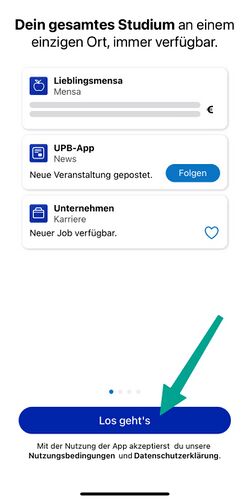
- Click on "Let's go".

- Click on "Sign in with University account".

- Enter Username and Password for the Uni-Account
- Click on "Login".
- If you have the password automatically filled in by a password manager, problems may occur.
- Recommendation: Insert password manually

- You will now see a list of the information that will be transmitted to UniNow.
- Click on "Transfer information".

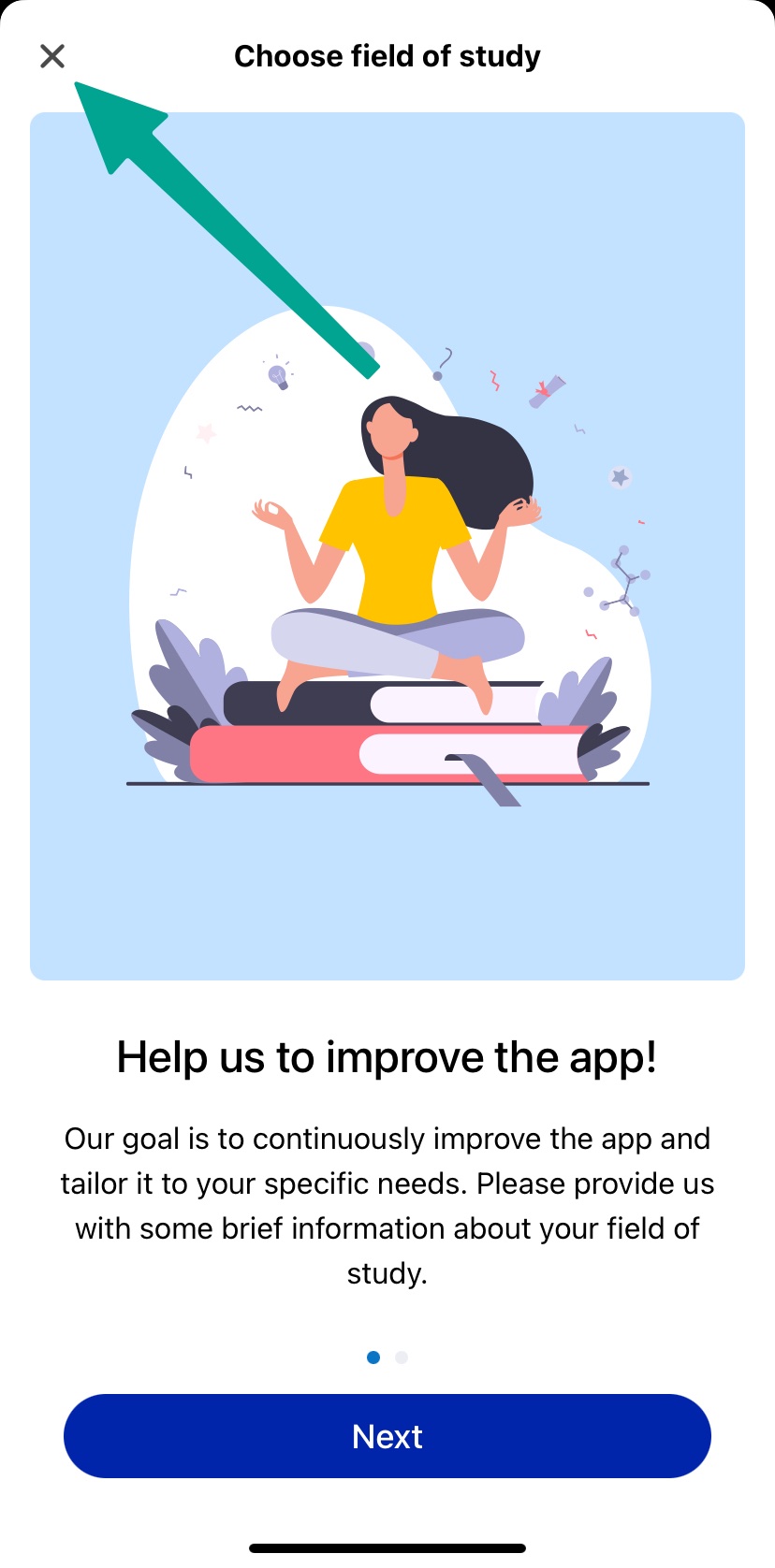
- Now you can choose your field of study
- This step is optional
- You can click on "Cancel"

- Click in the top left hand corner on "ID Card"
You can now use your digital student ID card.

Guest student[Bearbeiten | Quelltext bearbeiten]
Guest students receive a confirmation of admission. The status can be found in the information text. Here: "befristet - Große Zweithörerschaft".

Serviceportal[Bearbeiten | Quelltext bearbeiten]
If you do not have a smartphone or your device is temporarily out of order, you can alternatively print out your ID card yourself via the Serviceportal.
Open the Serviceportal:
- https://serviceportal.uni-paderborn.de
- Login with your Uni-Account

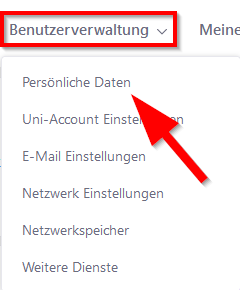
- Visit "Benutzerverwaltung" an click on "Persönliche Daten".

- Click on "Studierendenausweis PDF" to download your student ID card.

- Save the PDF file on your device.
See also[Bearbeiten | Quelltext bearbeiten]
Questions regarding the UPB-App?