Connect PC directly

ZIM HilfeWiki - das Wiki
PC direkt verbinden/en /
Version vom 13. März 2026, 22:23 Uhr von Mariels (Diskussion | Beiträge)

(Unterschied) ← Nächstältere Version | Bestätigte Version (Unterschied) | Aktuelle Version (Unterschied) | Nächstjüngere Version → (Unterschied)
Die deutsche Version finden Sie auf der Seite PC direkt verbinden

When using the internet connection in student residences, it is possible to temporarily connect a device such as a PC or laptop directly to the network via LAN. However, this should only be used as a temporary solution, for example, if you are moving in and still need to purchase a router.

IMPORTANT: Connecting via LAN means you are directly connected to the network, which means you do not have a private IP network. This is significantly less secure. Therefore, it is strongly advised against using this as a permanent solution, and you should purchase a router as soon as possible.

What needs to be done?[Bearbeiten | Quelltext bearbeiten]

Connect a LAN cable to the network socket in the wall and plug the other end of the LAN cable into your device.

Step-by-step instructions[Bearbeiten | Quelltext bearbeiten]

You will need a LAN cable (at least CAT 5e or higher) and a device with a LAN port, such as a PC or laptop. If your device doesn't have a LAN port, you'll also need a suitable adapter, for example, LAN to USB-C.

  • Plug the LAN cable into the left port of your network socket.
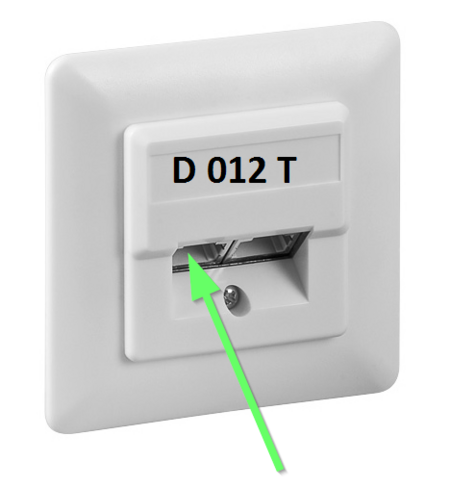
Plug network cable into left port


  • Plug the other end of the LAN cable into your device or the adapter.
See also[Bearbeiten | Quelltext bearbeiten]


Bei Fragen oder Problemen können Sie uns zu unseren Servicezeiten telefonisch oder per E-Mail erreichen:


☎ Helpdesk: +49 5251 60-5544 ☎ Medien: +49 5251 60-2821 E-Mail: zim@uni-paderborn.de

Oder Sie besuchen uns vor Ort: Sie finden das Notebook-Café gemeinsam mit dem Servicecenter Medien in H1.201.

Servicezeiten

Mo. Di. – Do. Fr.
NBC Vor-Ort-Support Geschlossen 09:00 – 13:00 Uhr Geschlossen
Helpdesk Telefonsupport 08:30 – 15:00 Uhr 08:30 – 15:00 Uhr 08:30 – 13:00 Uhr
Servicecenter Medien 09:00 – 15:00 Uhr 09:00 – 15:00 Uhr 09:00 – 13:00 Uhr
Cookies helfen uns bei der Bereitstellung des ZIM HilfeWikis. Bei der Nutzung vom ZIM HilfeWiki werden die in der Datenschutzerklärung beschriebenen Cookies gespeichert.