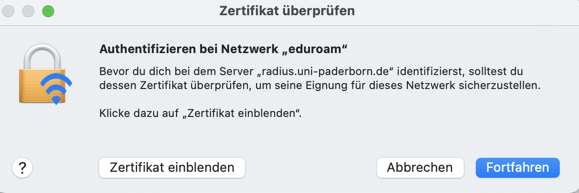
Das Zertifikat des RADIUS Servers wird am 17.12.2025 um 8:00 Uhr ausgetauscht. Im Anschluss kann es bei passieren, dass Ihr Endgerät Sie dazu auffordert das Zertifikat zu prüfen, bevor Sie diesem vertrauen. Den aktuellen Fingerprint des Zertifikats finden Sie hier:
Sie müssen kein Netzwerkzertifikat auf Ihrem Endgerät tauschen. Die meisten Geräte sollten sich weiterhin problemlos mit eduroam verbinden können. Mehr Details zum Verhalten auf den einzelnen Geräten hier zum ausklappen:
Für Details hier klicken
macOS
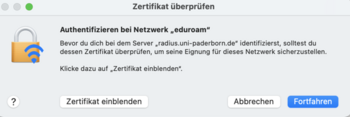
- Zertifikat einblenden um das Zertifikat zu prüfen
- Fortfahren um dem Zertifikat zu vertrauen
- Gegebenenfalls müssen Sie im Anschluss Ihr Zertifikat erneut auswählen.
- Geben zur Anmeldung bei eduroam keinen Benutzernamen ein!


iPhone und iPad
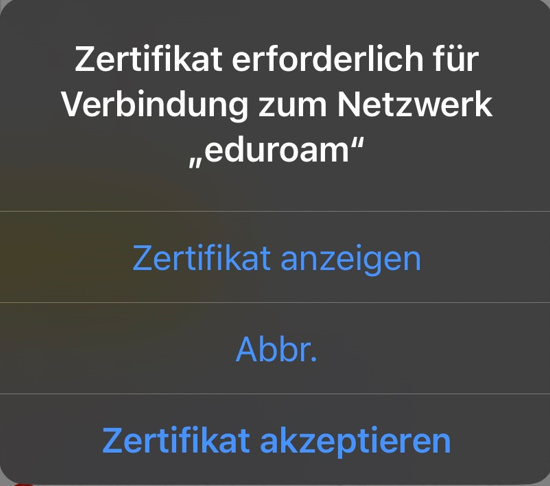
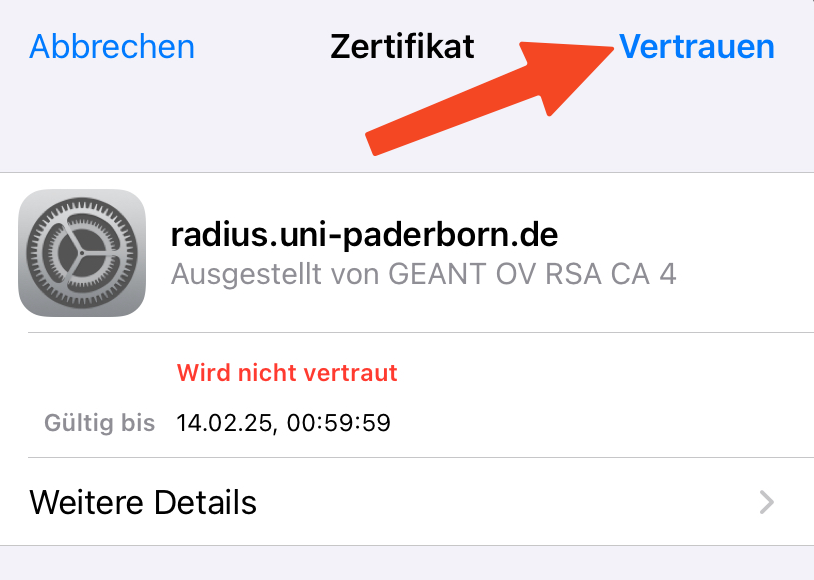
- Zertifikat anzeigen um das Zertifikat zu prüfen
- Zertifikat akzeptieren um dem Zertifikat zu vertrauen

Windows

- Zertifikatsdetails anzeigen um das Zertifikat zu prüfen
- Verbinden um dem Zertifikat zu vertrauen
These instructions explain how to set up the eduroam WiFi for iPhones and iPads.
Step-by-step instructions[Bearbeiten | Quelltext bearbeiten]
Apply for certificate[Bearbeiten | Quelltext bearbeiten]

- Open the service portal using Safari.
- Log in with your university account.
Note: Do not use an alternative browser such as Google Chrome or Firefox for this. Downloading files is therefore not permitted under iOS.
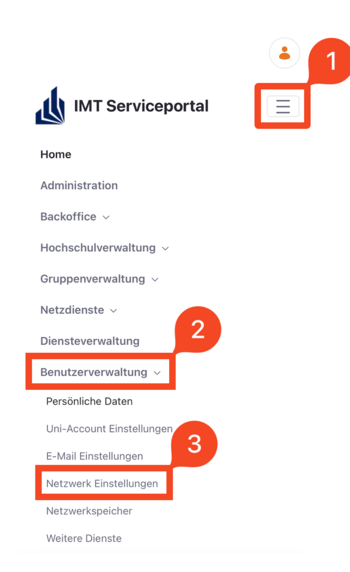
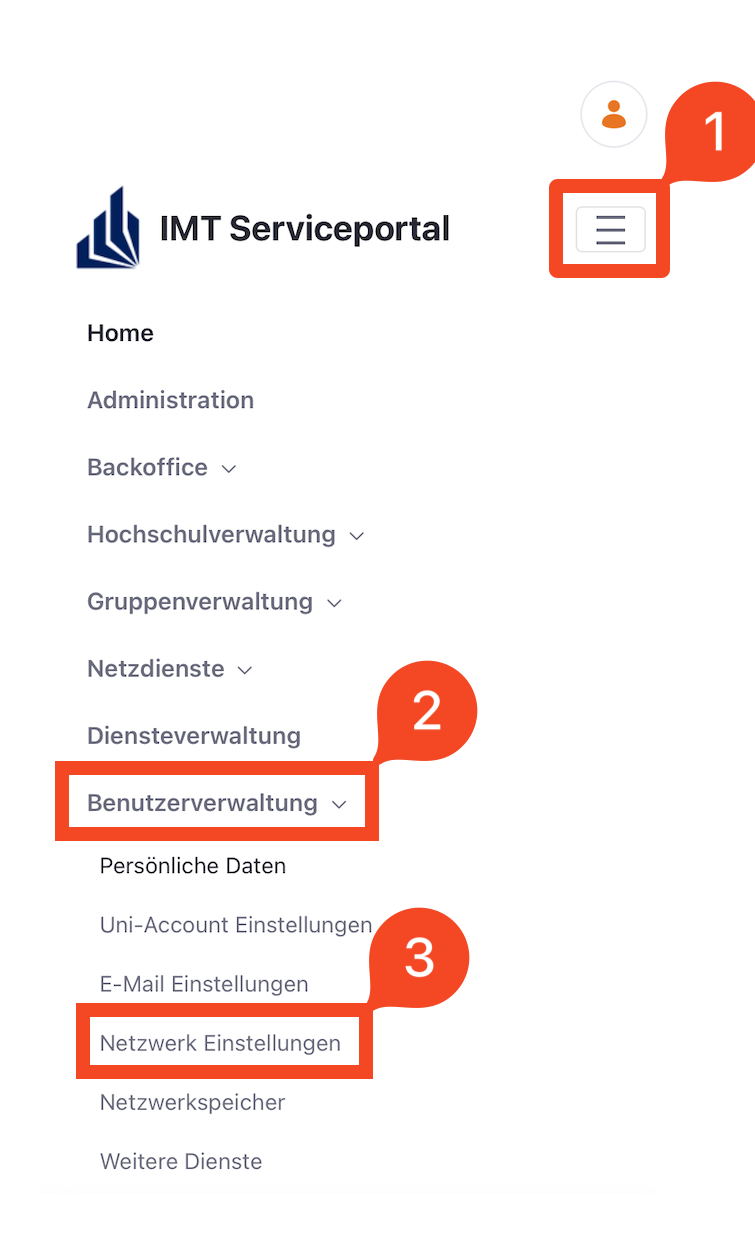
- Click on the 3 vertical bars at the top right.
- Click Benutzerverwaltung.
- Then click on Netzwerkeinstellungen.
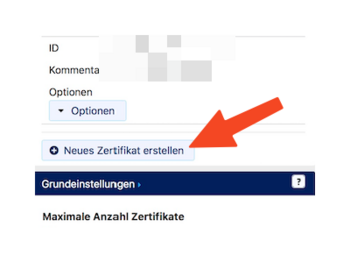
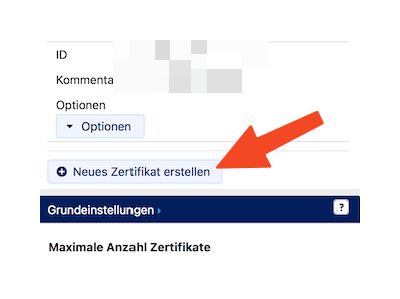
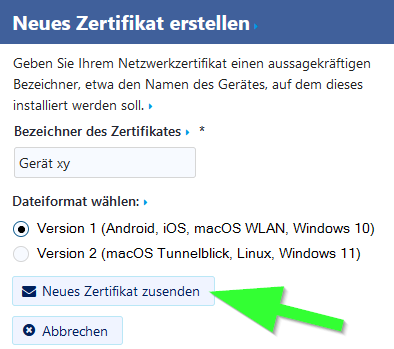
- Click Neues Zertifikat erstellen.
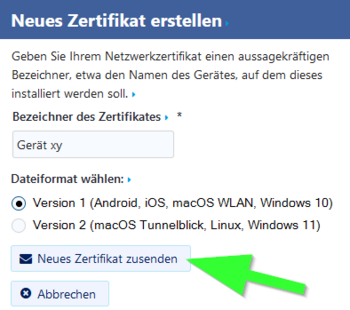
- Give the certificate a unique name (Example: iPhone)
- Select Version 1 as the file format.
- Then click on 'Neues Zertifikat zusenden.
Note: Create a separate certificate for each of your devices. A device is no longer used? Device was lost or stolen? Revoke the certificate via the service portal.
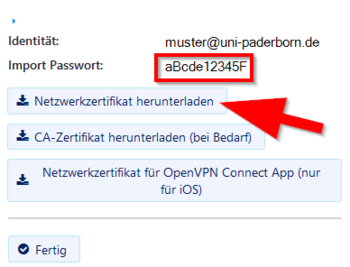
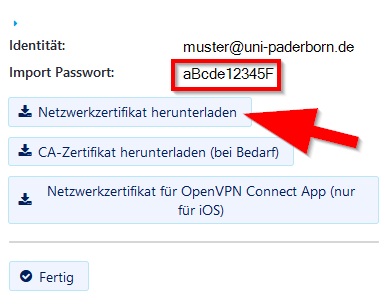
- A new network certificate has been created for you.
- First copy the Import Password to the clipboard.
- Now click on Netzwerkzertifikat herunterladen.
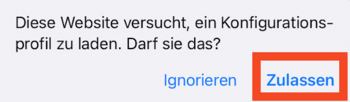
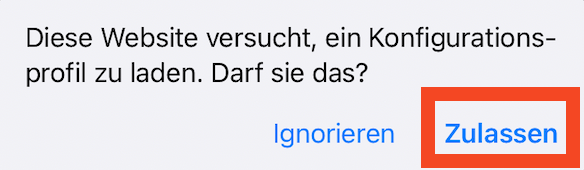
- The network certificate can now be loaded as a configuration profile in the iOS settings.
- To do this, click Allow.
Install certificate[Bearbeiten | Quelltext bearbeiten]
 Open the Settings app.
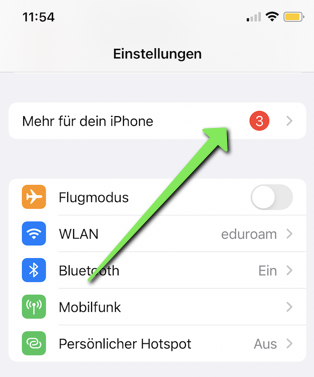
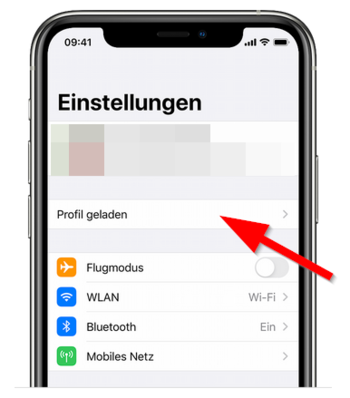
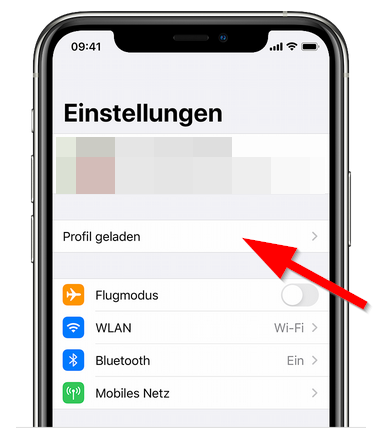
- Click on the Profile loaded entry.
- "More for your iPhone" can also appear here instead if several things are pending (e.g. updates)
- Click Install.
- Enter the code for your iPhone.
- Click "Install" again.
- Enter the import password that you just copied to the clipboard.
- Click on Continue".
Connect Eduroam[Bearbeiten | Quelltext bearbeiten]
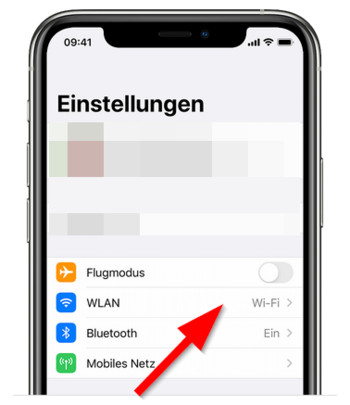
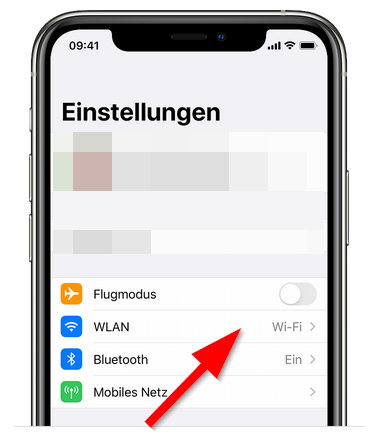
- In the Settings app, click Wi-Fi.
- Then click on the network "eduroam".
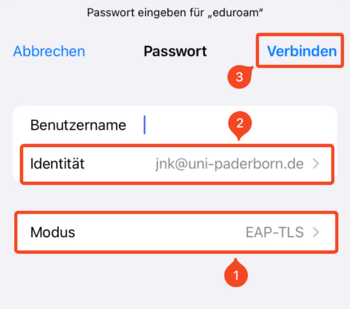
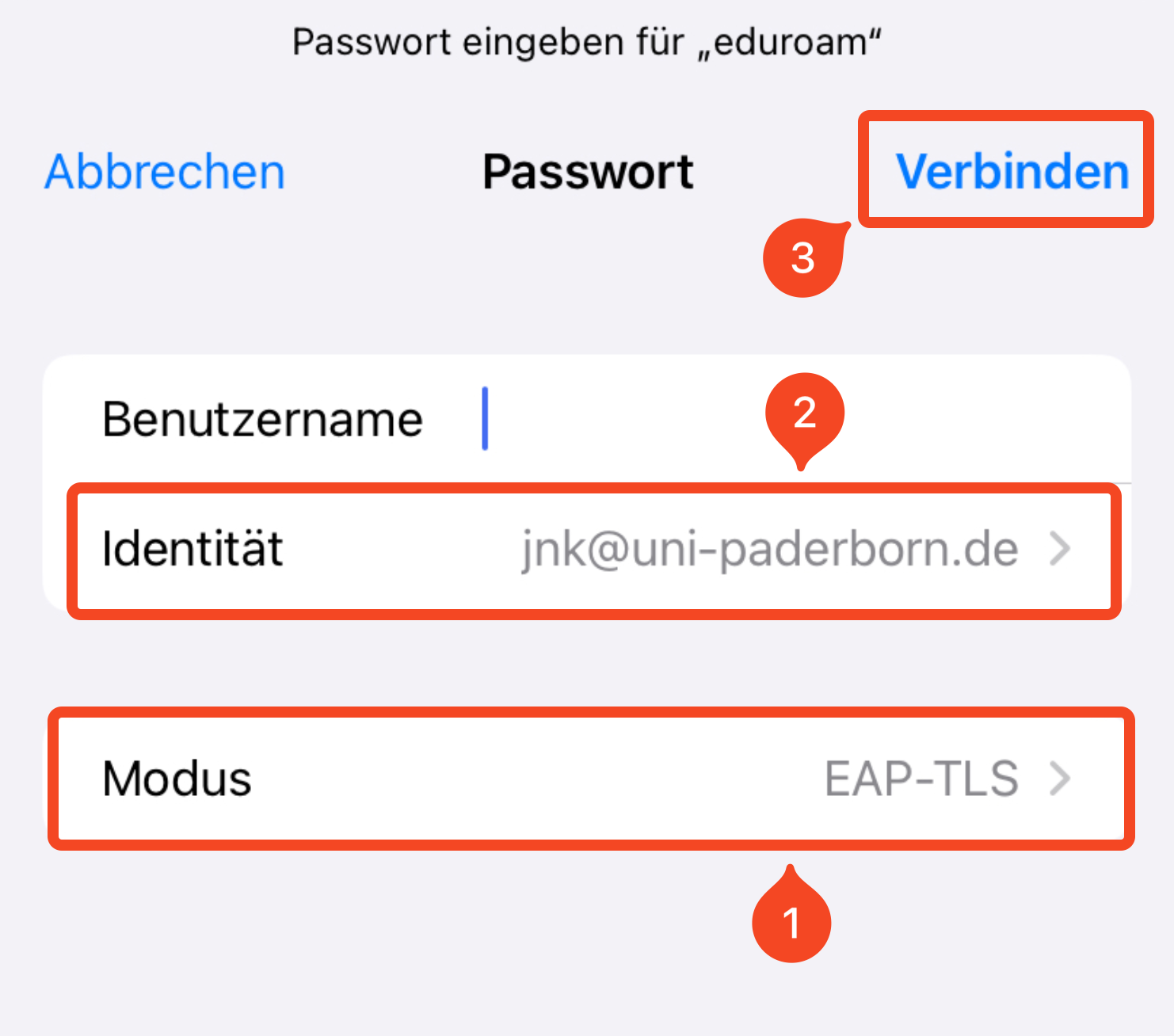
- Change the mode to "EAP-TLS".
- Select your certificate under Identity. It ends in "@uni-paderborn.de".
- Be sure to leave the "Username" field blank!
- Then click "Connect".
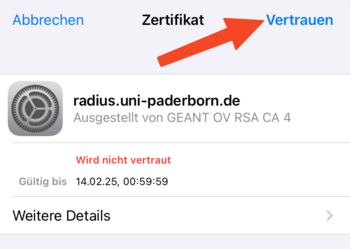
- Click Trust.
Your device should now connect to the eduroam WiFi.
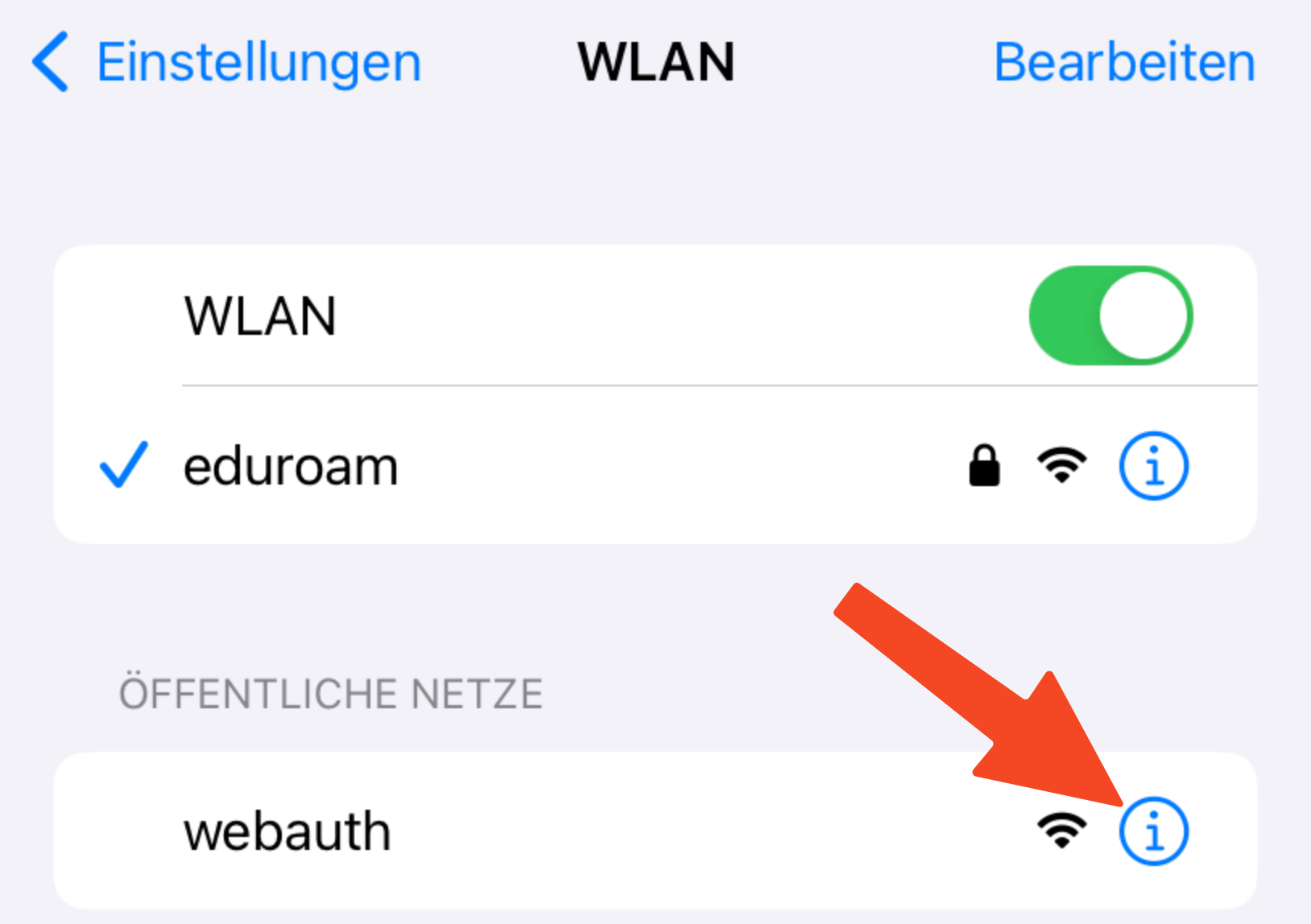
Important: Remove the network webauth from the list of your known networks. Otherwise your iPhone will not connect reliably to eduroam. To do this, follow these steps:
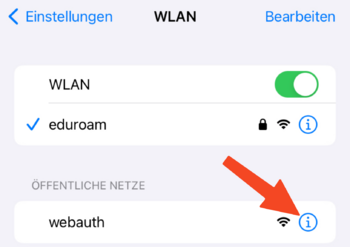
- Open Wi-Fi settings.
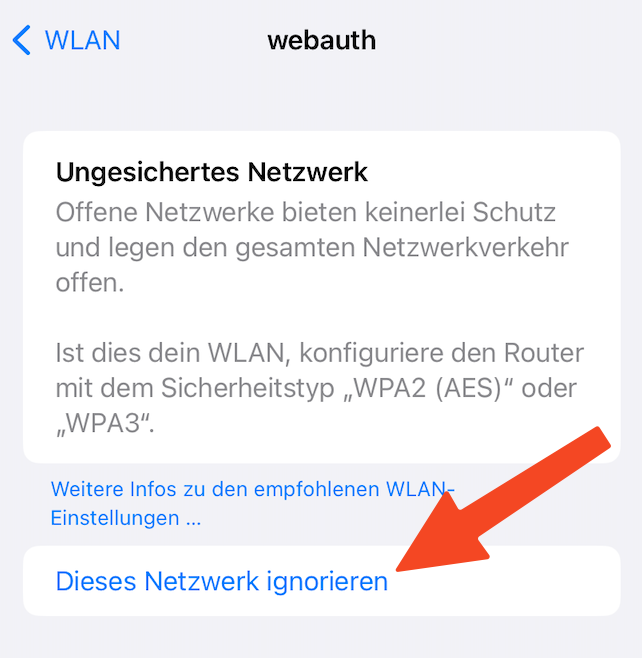
- Click on the "i" next to "webauth".

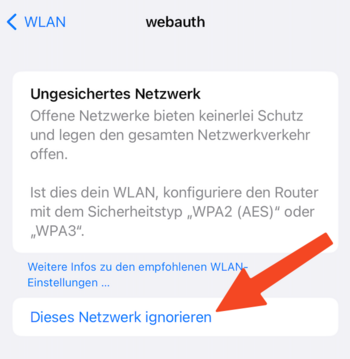
- Click Ignore this network.
Troubleshooting[Bearbeiten | Quelltext bearbeiten]
Your device doesn't connect to eduroam? Try the following steps:
- Turn WiFi off and on again
- Enable and disable Airplane Mode
- Restart your device
Your device still doesn't connect to eduroam?
- Open Wi-Fi settings.
- Click on the "i" next to "eduroam".
- Click Ignore this network.
The WLAN eduroam has now been deleted from the list of known networks. You can now connect it again [1].
Your device still doesn't connect to Eduroam?
- Remove eduroam via Ignore this network as described in the previous tip.
- Open Settings > General > VPN and Device Management.
- Delete all configuration profiles that end with "@uni-paderborn.de" here.
- If necessary, delete profiles from other universities where you previously had Eduroam access.
- Start again at the beginning of this guide.