Erstellung eines Uni-Accounts (Studierende)/en
K |
Jnk (Diskussion | Beiträge) (→Additional information: I0 in H1 geändert) |
||
| (2 dazwischenliegende Versionen desselben Benutzers werden nicht angezeigt) | |||
| Zeile 4: | Zeile 4: | ||
|translated title=Account creation for students | |translated title=Account creation for students | ||
}} | }} | ||
| − | |||
| − | |||
| − | |||
| − | |||
| − | |||
| − | |||
| − | |||
| − | |||
| − | |||
| − | |||
| − | |||
| − | |||
Every student who has enrolled for the first time at the University of Paderborn will be sent a letter containing a TAN to their home address. This TAN is required for the creation of the Uni-Account. The Uni-Account can be created from any place with an internet connection. | Every student who has enrolled for the first time at the University of Paderborn will be sent a letter containing a TAN to their home address. This TAN is required for the creation of the Uni-Account. The Uni-Account can be created from any place with an internet connection. | ||
| Zeile 57: | Zeile 45: | ||
Please bring a valid photo ID with you. | Please bring a valid photo ID with you. | ||
<br> | <br> | ||
| − | You can find the Notebook-Café in | + | You can find the Notebook-Café in H1.201 |
<br> | <br> | ||
https://nbc.upb.de | https://nbc.upb.de | ||
Aktuelle Version vom 30. April 2025, 11:46 Uhr
Die deutsche Version finden Sie auf der Seite Erstellung eines Uni-Accounts (Studierende)
Every student who has enrolled for the first time at the University of Paderborn will be sent a letter containing a TAN to their home address. This TAN is required for the creation of the Uni-Account. The Uni-Account can be created from any place with an internet connection.
What needs to be done?[Bearbeiten | Quelltext bearbeiten]
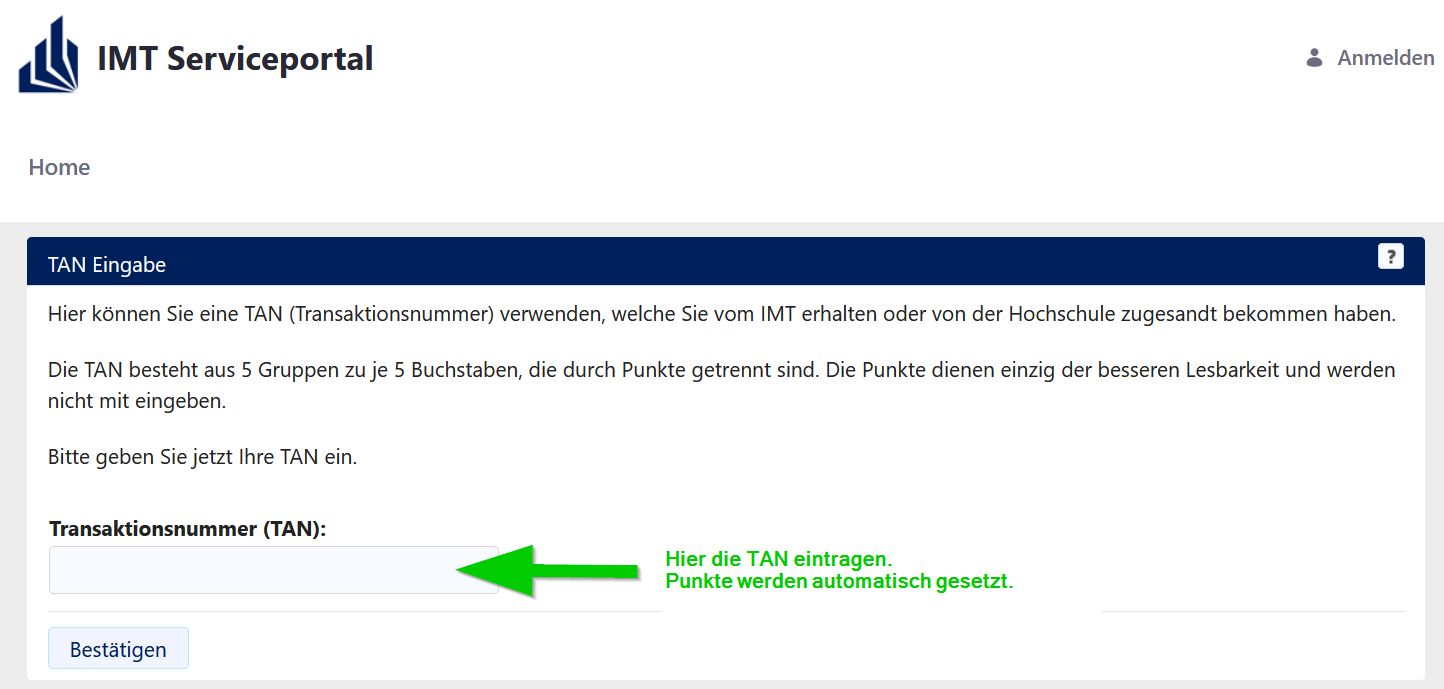
- Visit Serviceportal:TAN
- Create Uni-Account
- Choose username and password
Step by step tutorial[Bearbeiten | Quelltext bearbeiten]
Visit the following page:
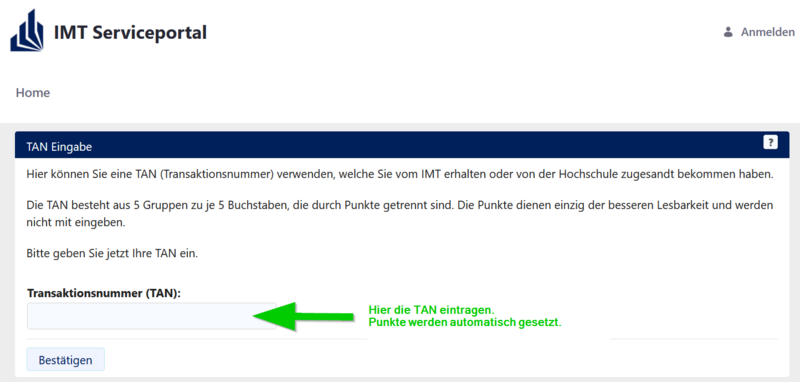
- Type in your TAN and click on "Bestätigen“.
- Fill out the online form.
- Choose your username and password and create your account.
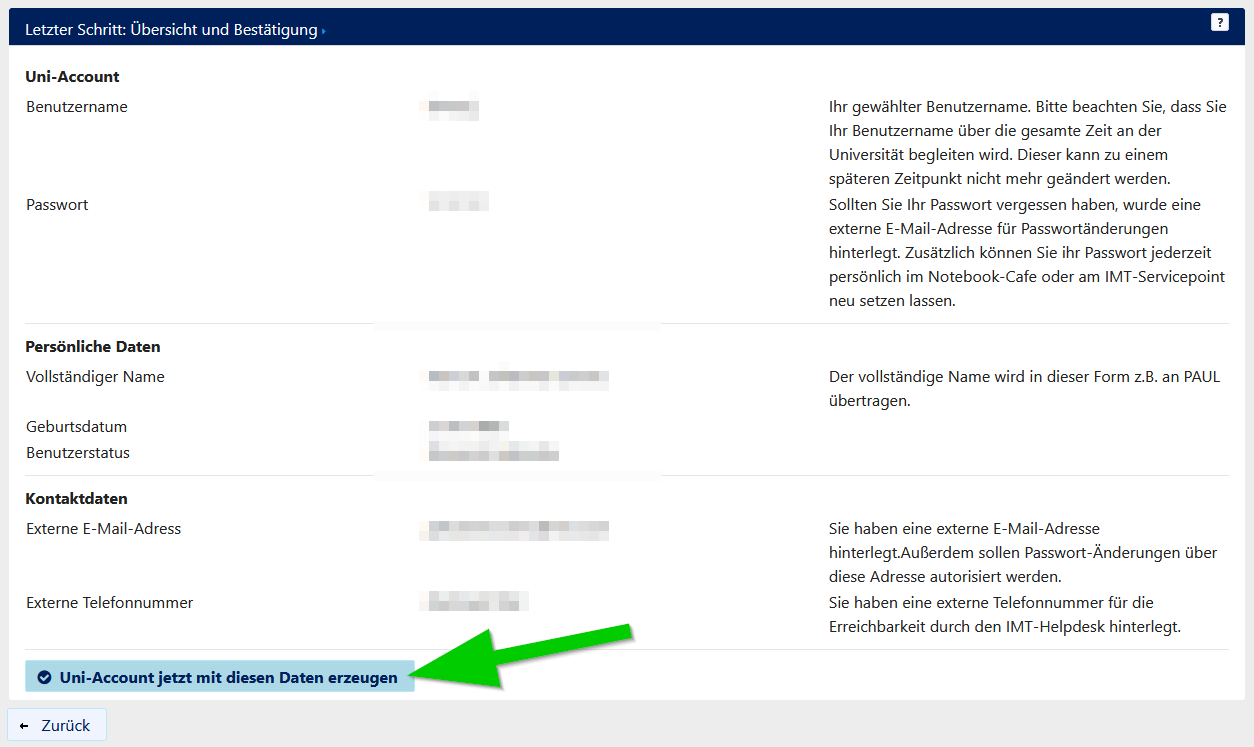
- You can check your information in the last step.
- Click the button to complete the account creation.
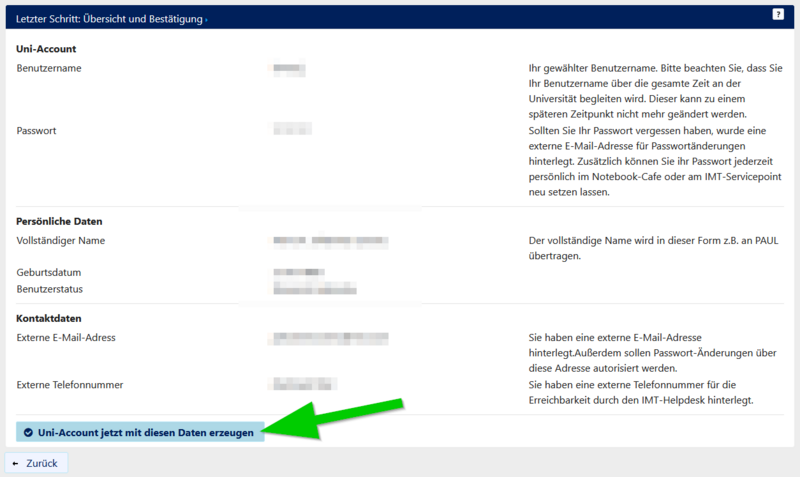
- Access to PAUL will be granted one day after the creation of the Uni-Account.
- Access to PANDA and e-mail-service will be granted immediately.
Additional information[Bearbeiten | Quelltext bearbeiten]
Please consider that your TAN will expire if
- you used your TAN to create an Uni-Account.
- your TAN is older than 4 weeks.
- you already have an Uni-Account.
If you lost your TAN, you can get a new one at the Notebook-Café.
Please bring a valid photo ID with you.
You can find the Notebook-Café in H1.201
https://nbc.upb.de